
Introduction
Overview of OvoSale - Complete Cross-Platform POS Solution | Android & iOS Mobile Apps, Web, PWA-Desktop
OvoSale is a complete cross-platform POS solution designed to streamline business operations across multiple platforms. With dedicated mobile apps, a responsive web interface, and a PWA for seamless desktop usage, OvoSale offers a robust and feature-rich system for managing sales, inventory, purchases, reports, customers, suppliers, transactions, and human resources (HRM) effortlessly. Whether you run a retail store, a supermarket, or a small business, OvoSale equips you with the essential tools to enhance efficiency, manage your team, improve customer experience, and drive business growth.
This documentation provides a clear overview of the entire system, summarizing the core processes for easy understanding. The platform includes an intuitive admin panel and landing page, designed for seamless use without any coding expertise. It also integrates multiple automated online payment gateways, simplifying global transactions effortlessly.
Thank you for choosing OvoSale If you have any questions not covered in this documentation, please feel free to reach out to us via email. We’re here to assist and will respond as promptly as possible. Thank you again!
Server Requirements
All server requirements are stated bellow
The following server requirements outline the essential specifications for setting up and running the system efficiently. Meeting these requirements will ensure smooth operation, enhance performance, and support seamless functionality across all features. Please verify your server configuration aligns with these standards prior to installation.
- PHP Version 8.3 or 8.3+
- MySQL Version 8.0+ or MariaDB version 10.6+
- BCMath PHP Extension
- Ctype PHP Extension
- cURL PHP Extension
- DOM PHP Extension
- Fileinfo PHP Extension
- GD PHP Extension
- JSON PHP Extension
- Mbstring PHP Extension
- OpenSSL PHP Extension
- PCRE PHP Extension
- PDO PHP Extension
- pdo_mysql PHP Extension
- Tokenizer PHP Extension
- XML PHP Extension
- Filter PHP Extension
- Hash PHP Extension
- Session PHP Extension
- Zip PHP Extension
- allow_url_fopen()
- file_get_contents()
Installation
Application installation process
Installation is straight forward and can be completed in a few simple steps. Our setup process is designed to be seamless and efficient, ensuring a smooth start
Installation Steps:
-
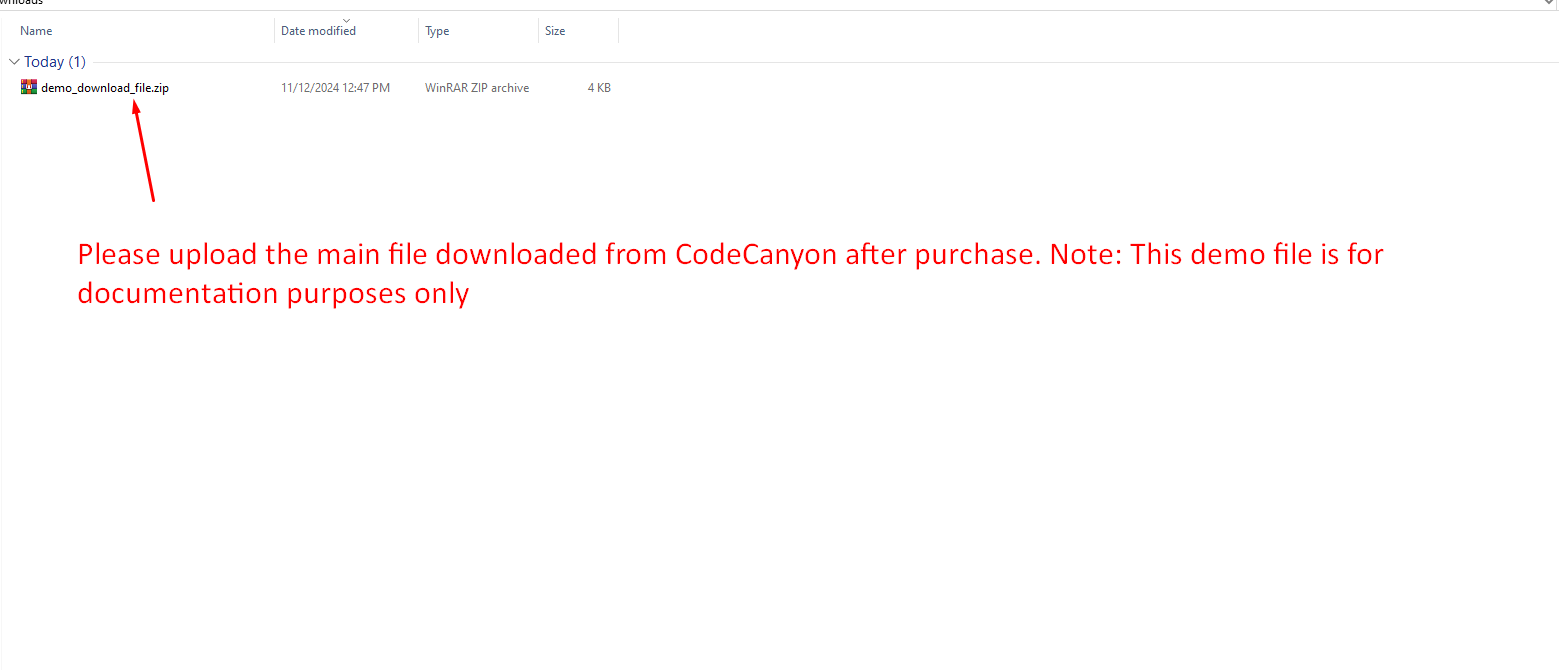
Upload the downloaded files directly to your server after purchase to
begin setup.
-
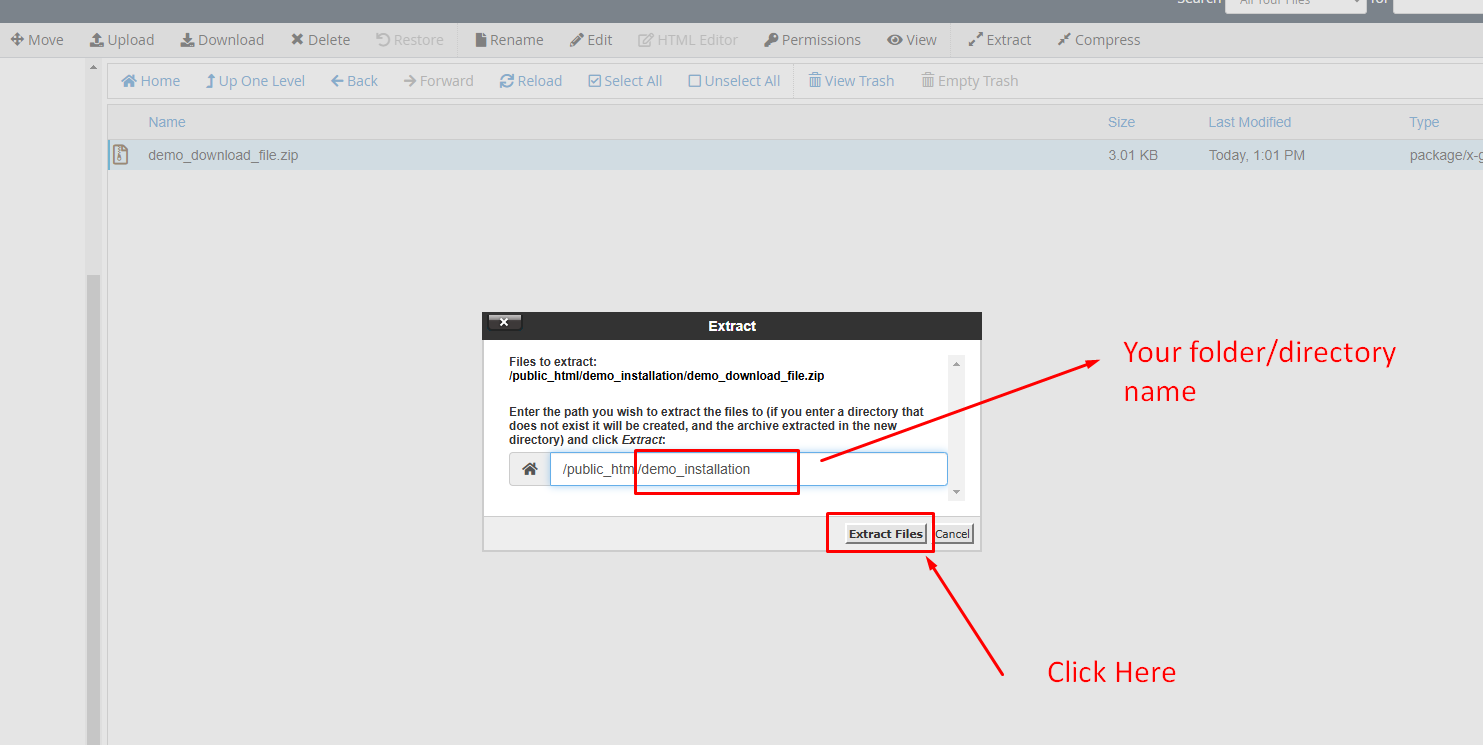
Extract the downloaded file and move all contents from the
Filesfolder to your desired installation directory. Ensure that bothindex.phpand.htaccessare included.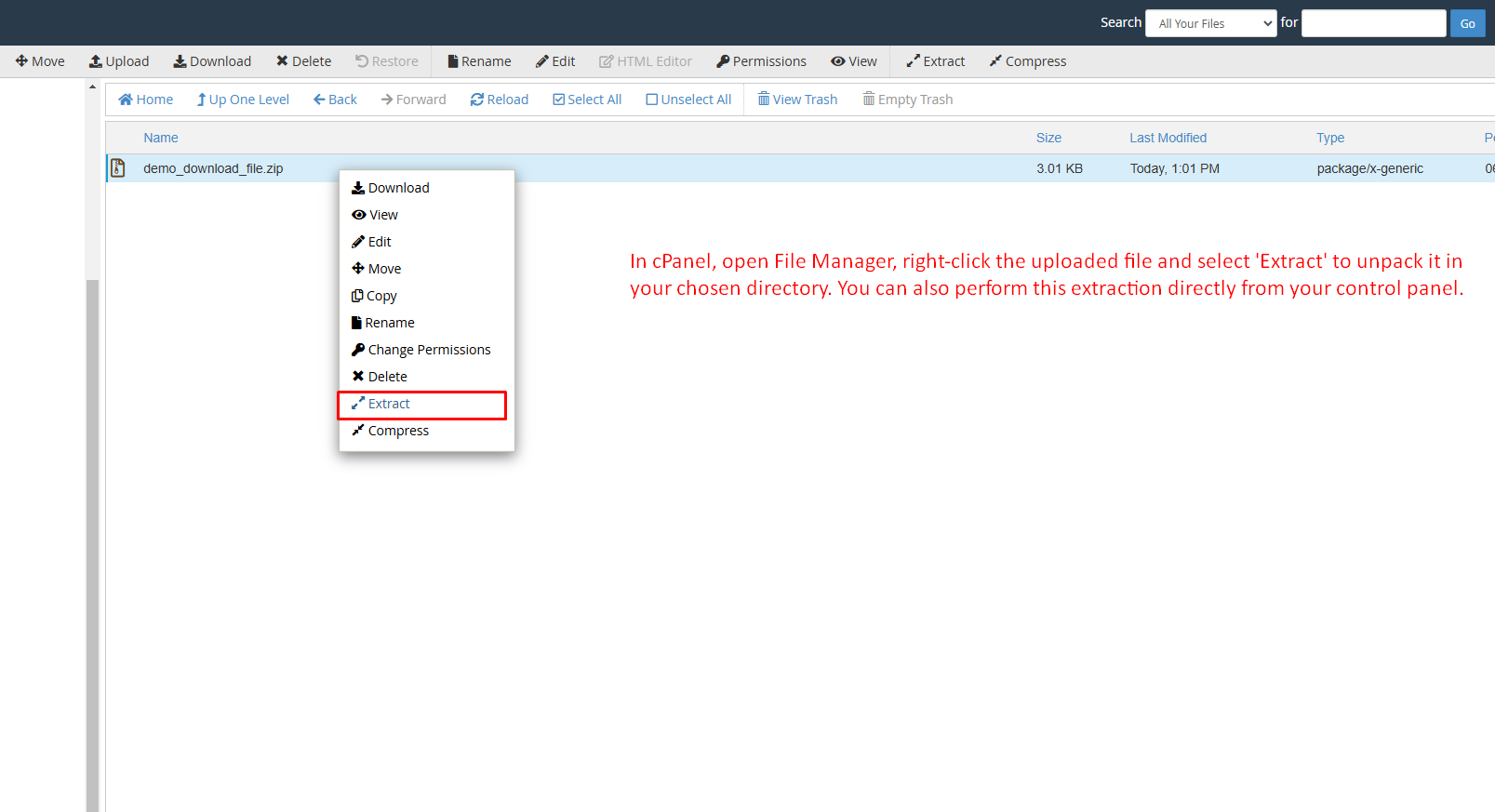
-
Quickly set up your database using the
Database Wizard/Managerin your control panel.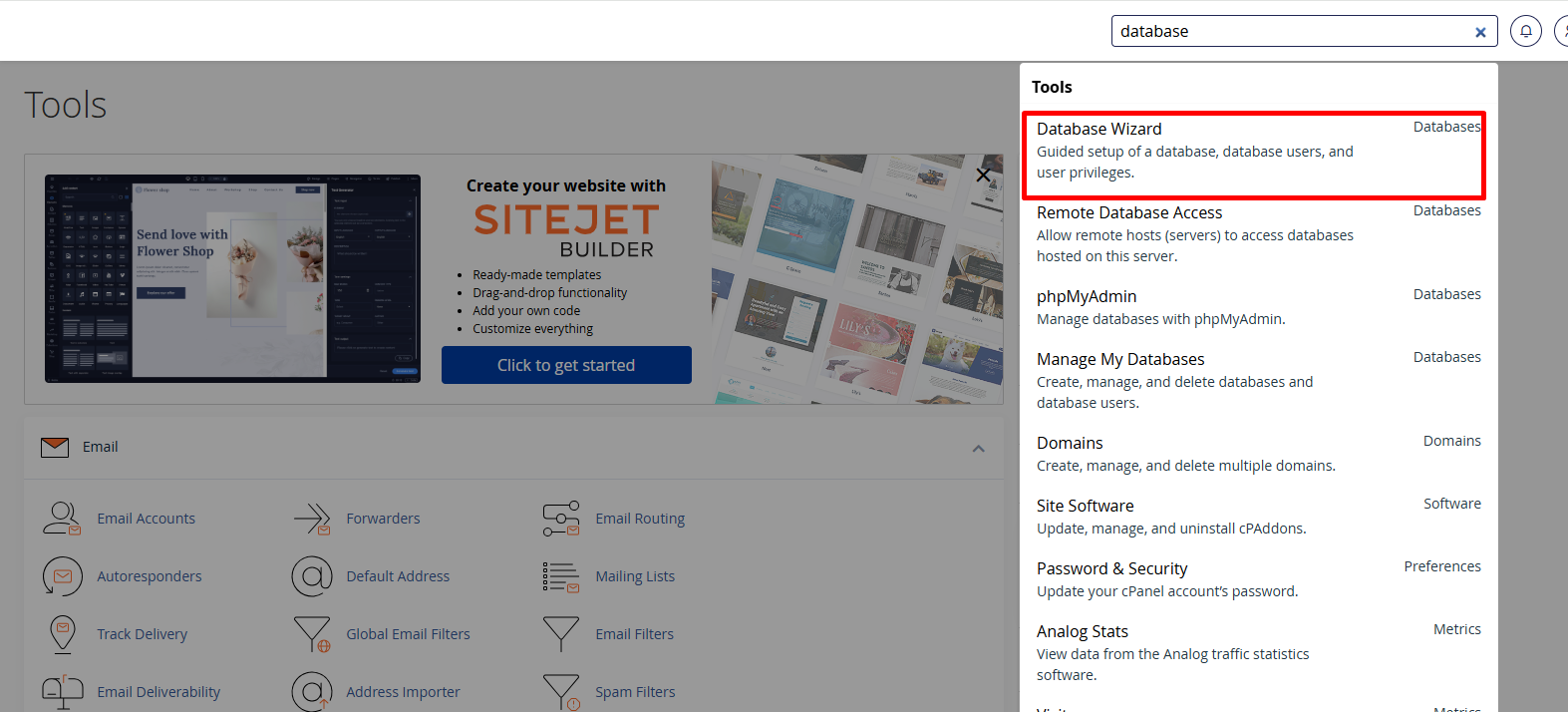
-
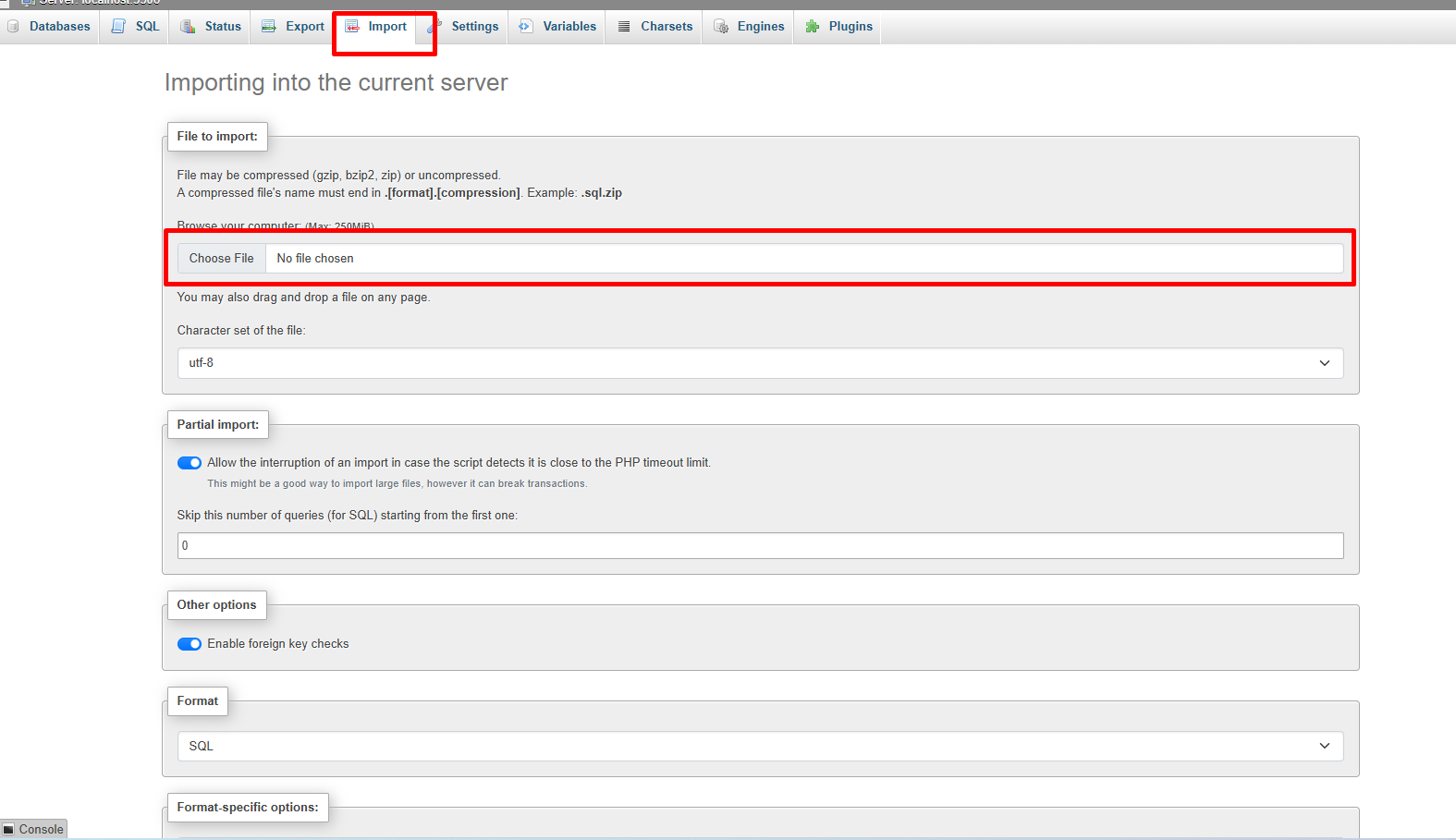
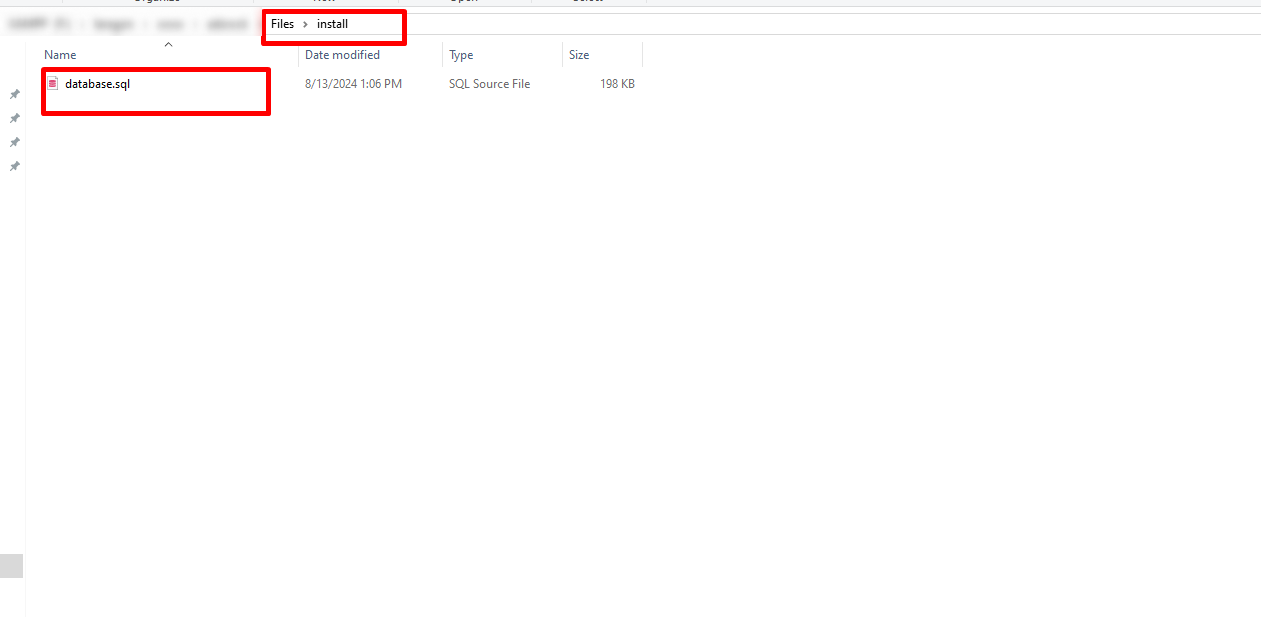
After creating the database, access
phpMyAdminon your server, select the newly created database, and import the project database from theFiles/Installationfolder.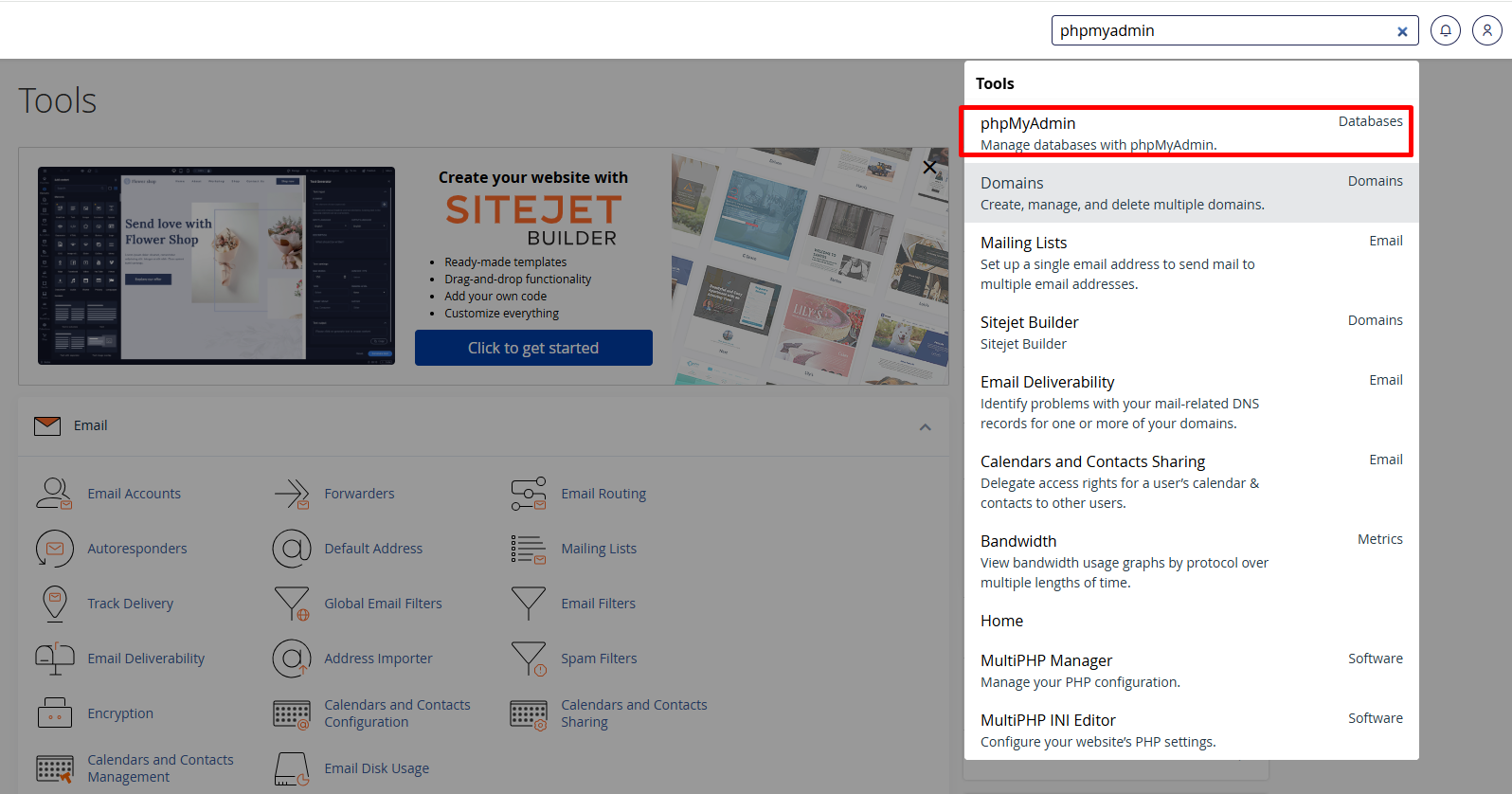
-
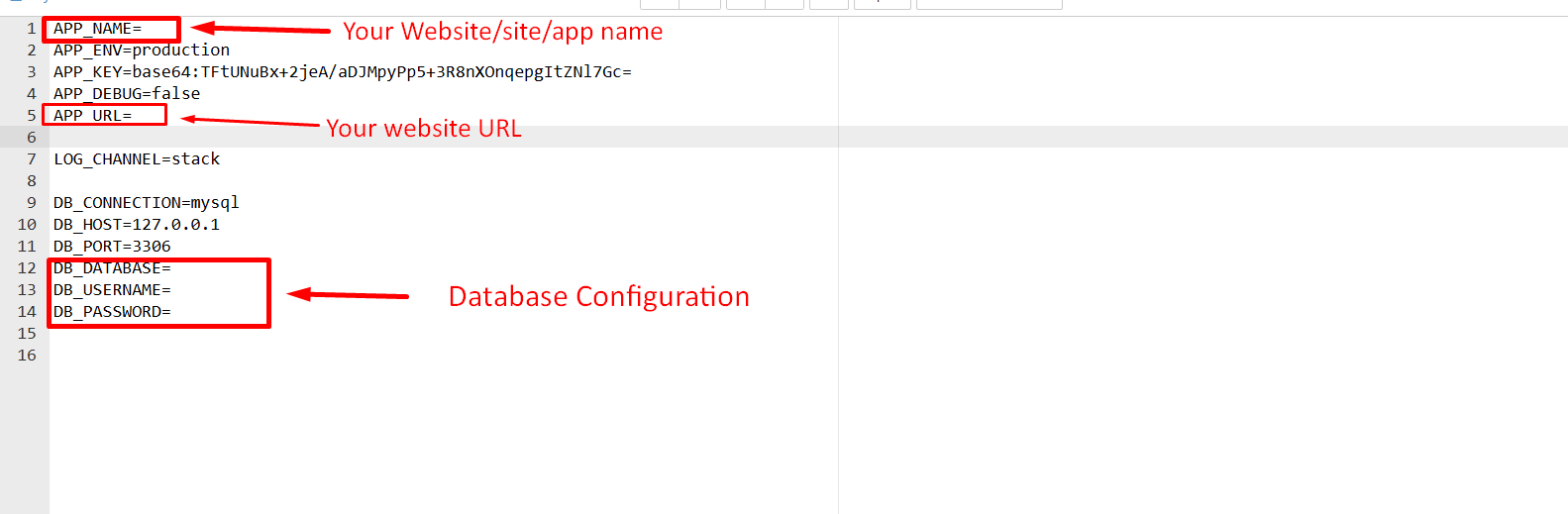
After importing the database, configure the
database credentialsin the.envfile and update the necessaryenvironment variables.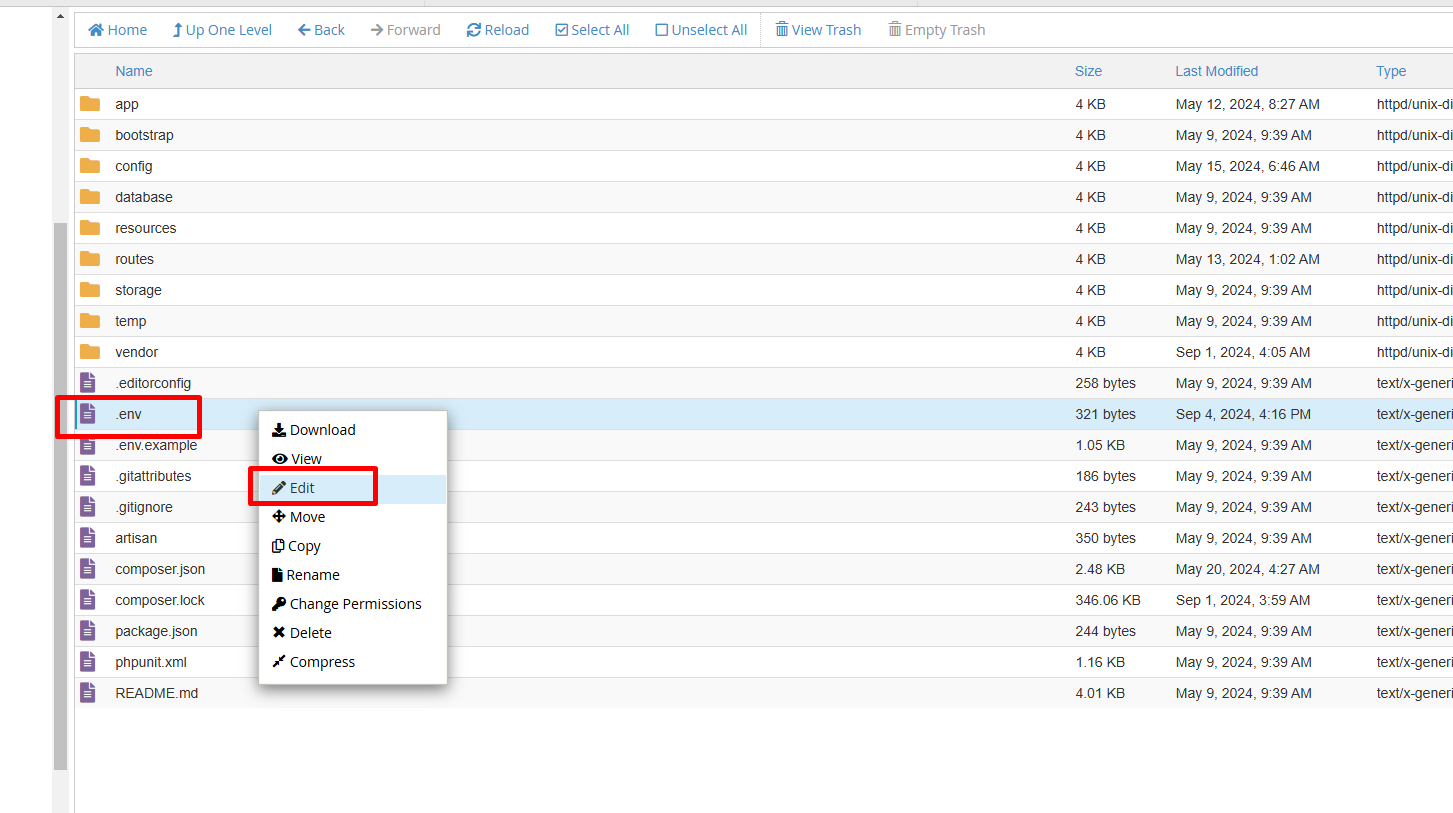
-
Installation is almost complete. Your site is now ready to browse.
Simply visit
http://your-site-url/adminand log in with the credentials below- username:admin
- password:admin
-
After logging in, please change the password for security. Also, remember to remove the
installationfolder once the project is successfully installed. -
If you're still unable to install the system, please contact us. We offer free installation on cPanel-based hosting.
Folder Structure
Important details about the application folder structure
After installation, your main folder will contain two folders and two files essential for the proper functioning of the application.
- assets
- core
- .htaccess
- index.php
-
In the
assetsfolder, you'll find all the necessary assets such as CSS, JS, and images. If you need to edit or modify any CSS or JS, this is the folder to access. -
The
corefolder contains the core Laravel files, maintaining the full MVC structure of the project for seamless functionality and organization.
Admin Dashboard
Overview of the admin dashboard
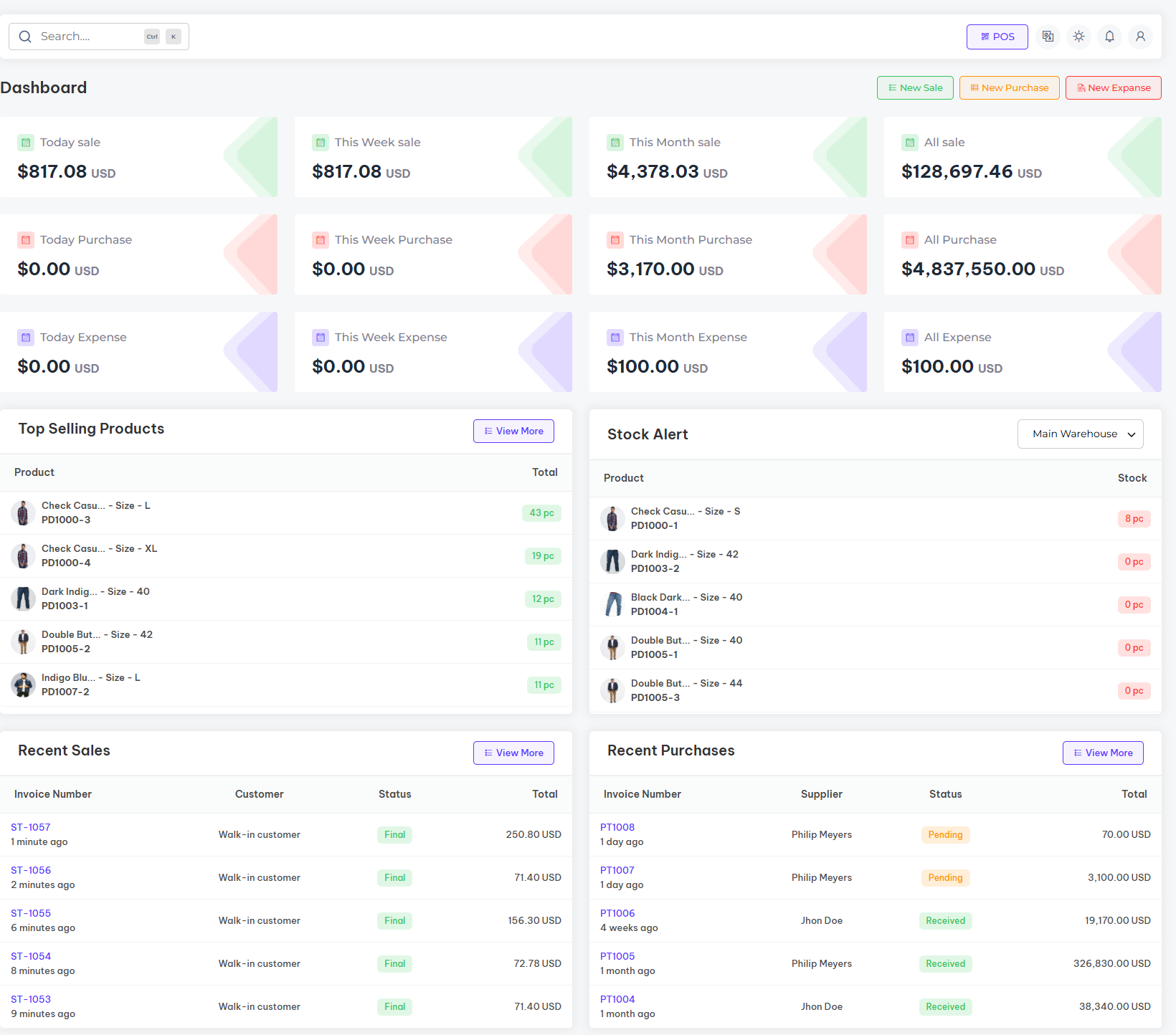
The items include the latest secure admin panel with a unique admin dashboard. By logging into your dashboard, you can easily view and manage all key information related to your website. From this dashboard, you'll get a comprehensive overview of your system, including total sales, purchase, expense and more. Additionally, you can track and compare system transactions with graphical data for better insights.
Sale
Overview of the all sale
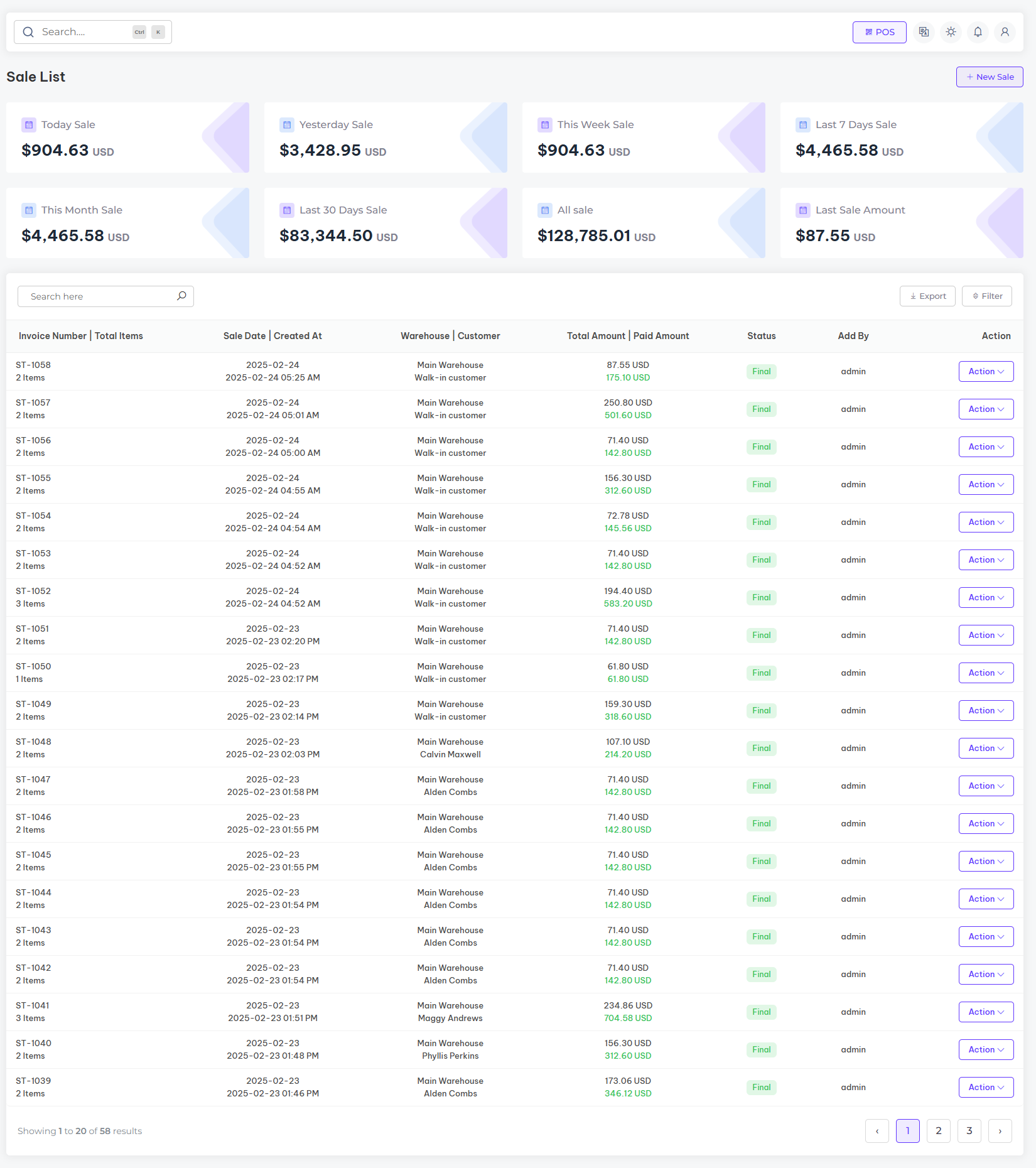
The manage sale section provides a detailed overview of all transactions processed through the system. It allows you to track every sale, view sale details, sale status, and customer information in a straightforward and organized manner. With filtering and search options, you can easily find specific sales records and manage them efficiently. This section helps you stay on top of your sales activity and ensures smooth operation of your business.
Purchase
Overview of the all purchase
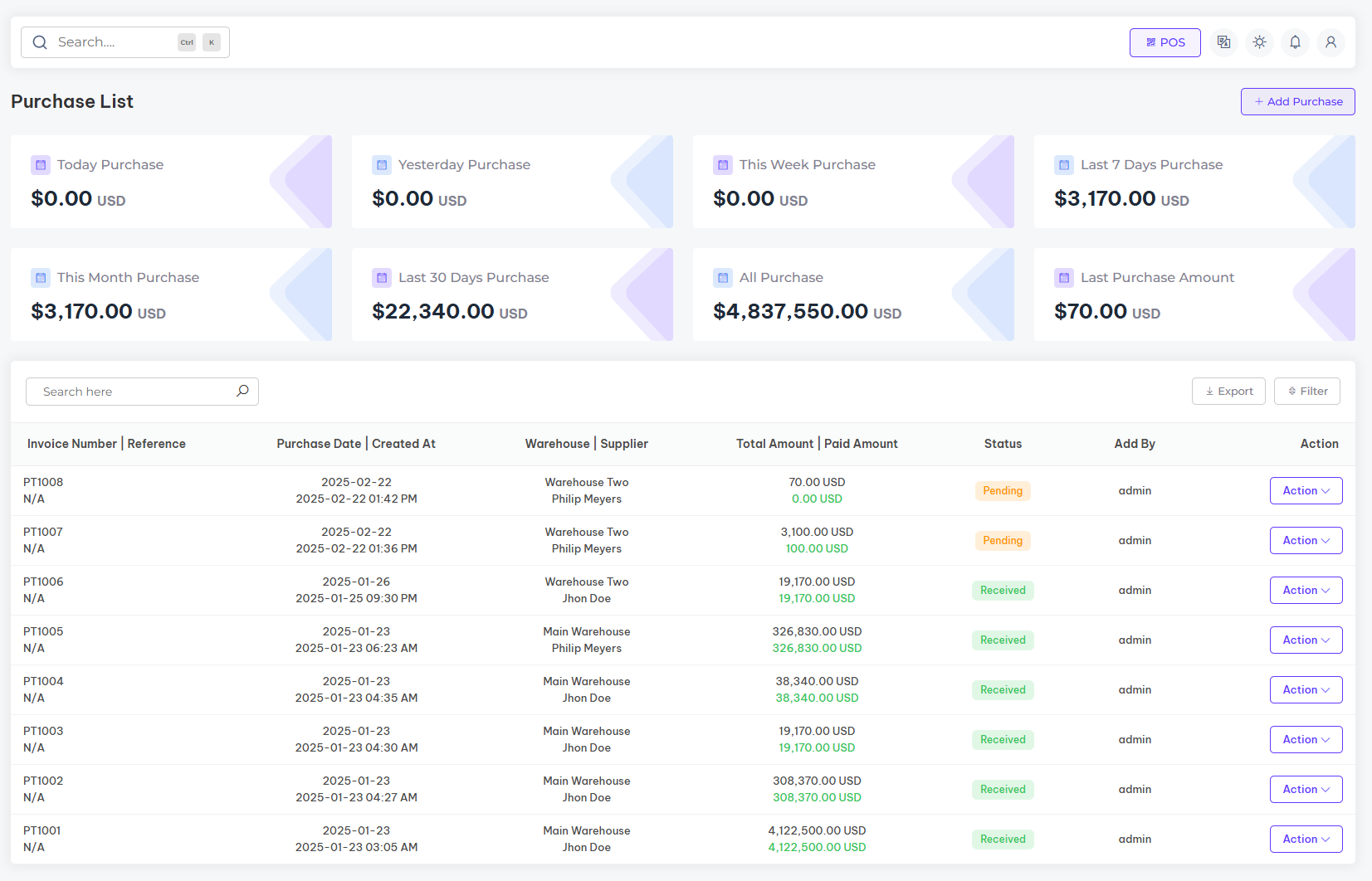
The Manage Purchase section allows you to efficiently track and manage all purchase orders within the system. You can view detailed information about each purchase, including vendor details, purchase dates, quantities, and purchase status. The section provides easy-to-use tools for adding, updating, and tracking purchases, ensuring smooth inventory management and accurate order processing. With this feature, you can maintain control over your purchasing process and ensure timely and accurate stock replenishment.
Product
Overview of the all products
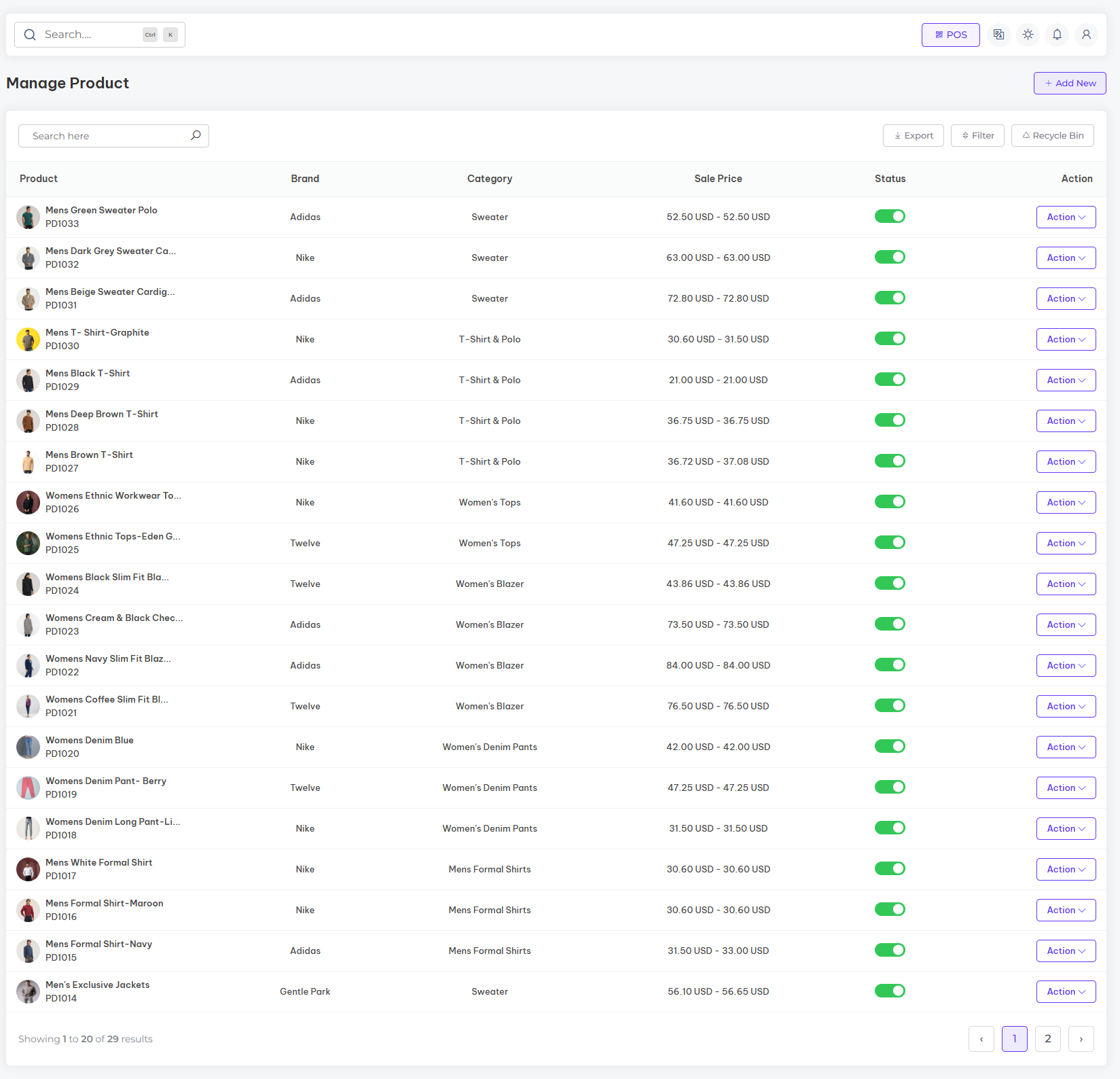
The All Products section provides a comprehensive overview of all the products in your system. You can easily view key details such as product names, categories, prices, and more. The section allows you to manage product listings, update information, and track inventory status with ease. With sorting and filtering options, you can quickly find specific products and make necessary adjustments. This feature helps you stay organized and ensures that your product catalog is always up to date.
Stock Report
Overview of the stock report
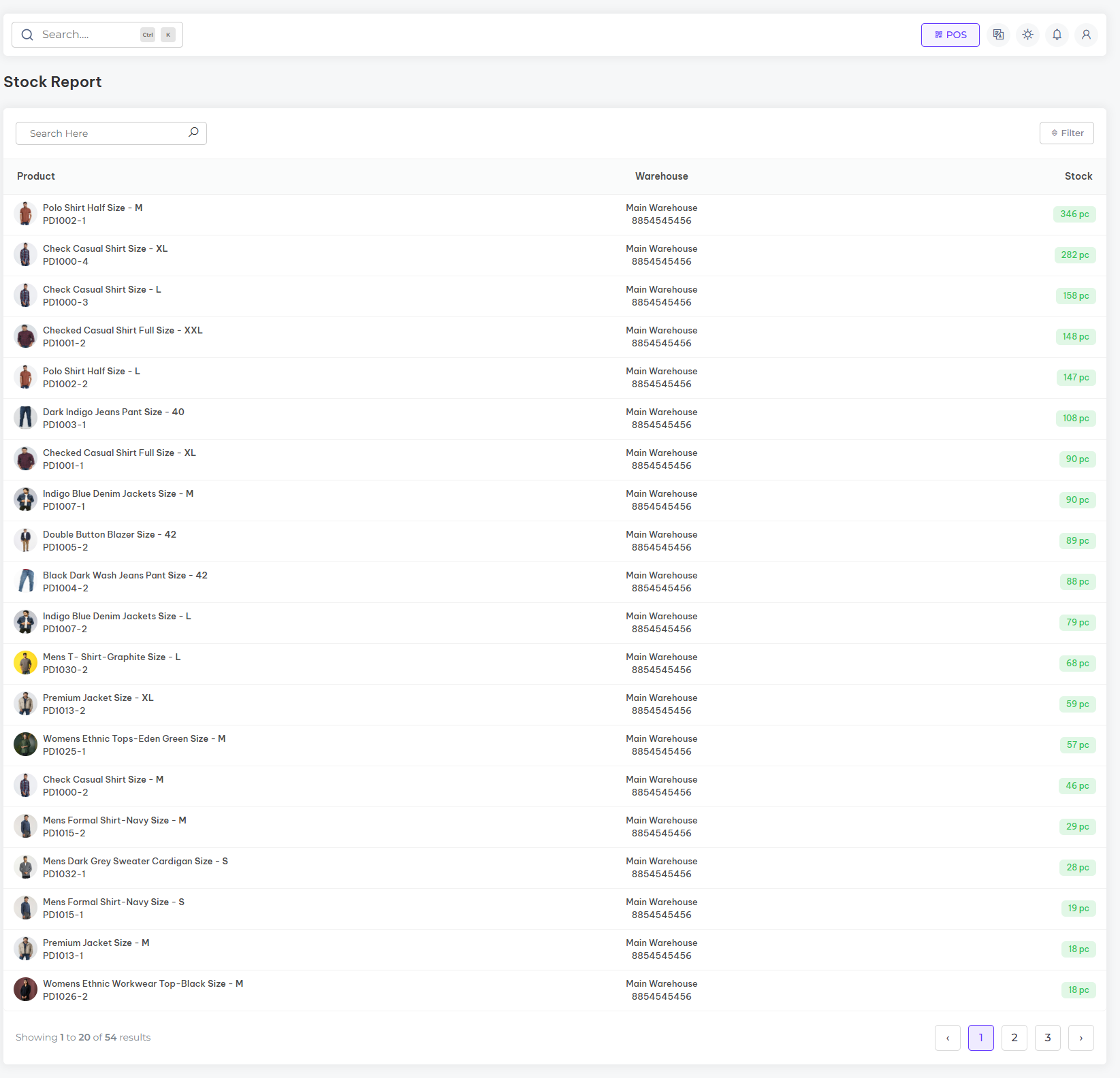
The Stock Report section provides a quick overview of your inventory, showing current stock levels and movements. It helps you track incoming and outgoing stock, monitor low-stock items, and generate accurate reports for efficient inventory management. This feature ensures you always have up-to-date stock information for informed decision-making.
Sale Report
Overview of the sale report
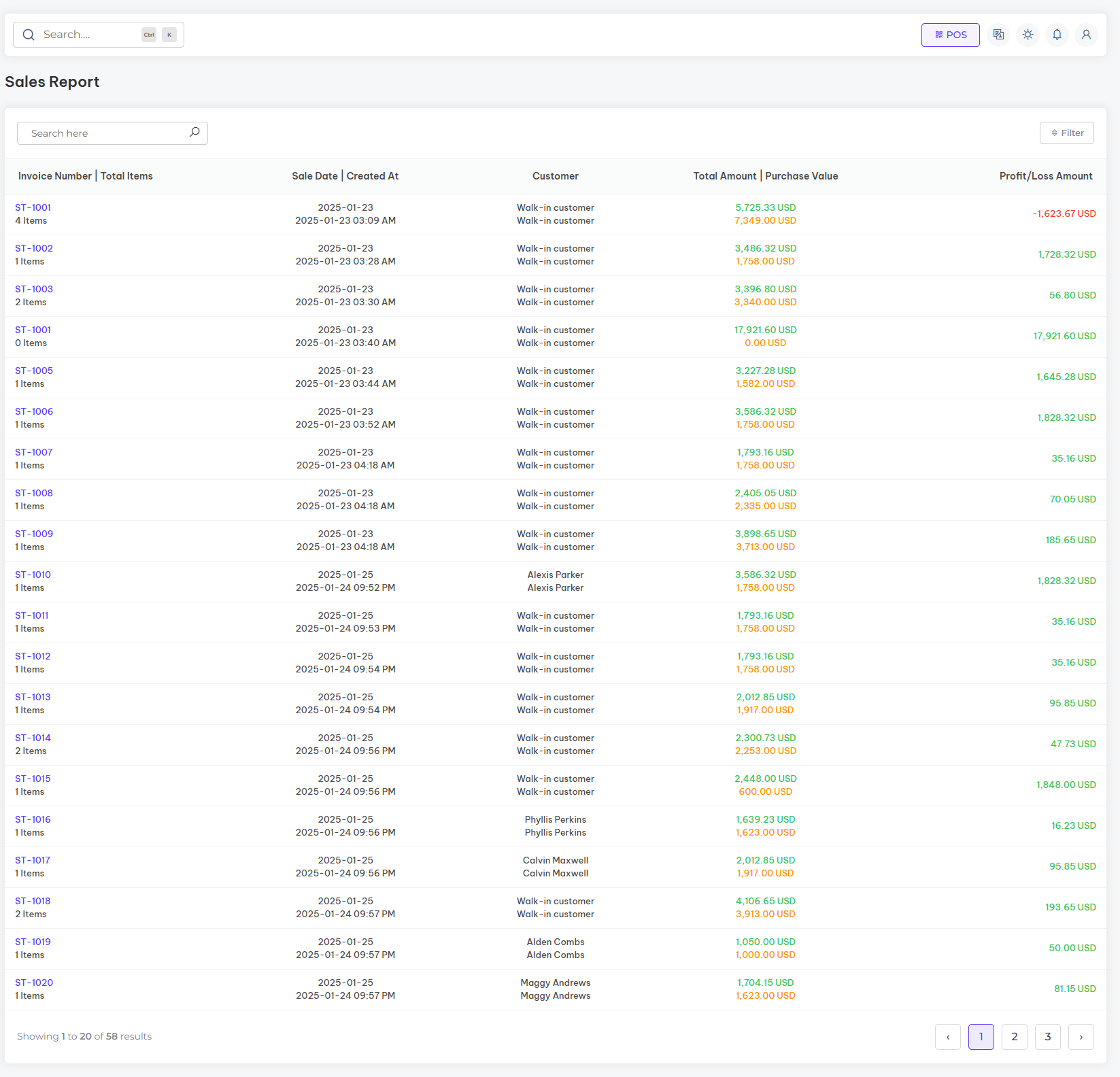
The Sale Report section gives you a detailed overview of your sales performance. You can track total sales, view individual transactions, and analyze payment statuses. This feature helps you monitor sales trends, identify top-performing products, and make data-driven decisions to boost business growth.
Purchase Report
Overview of the purchase report
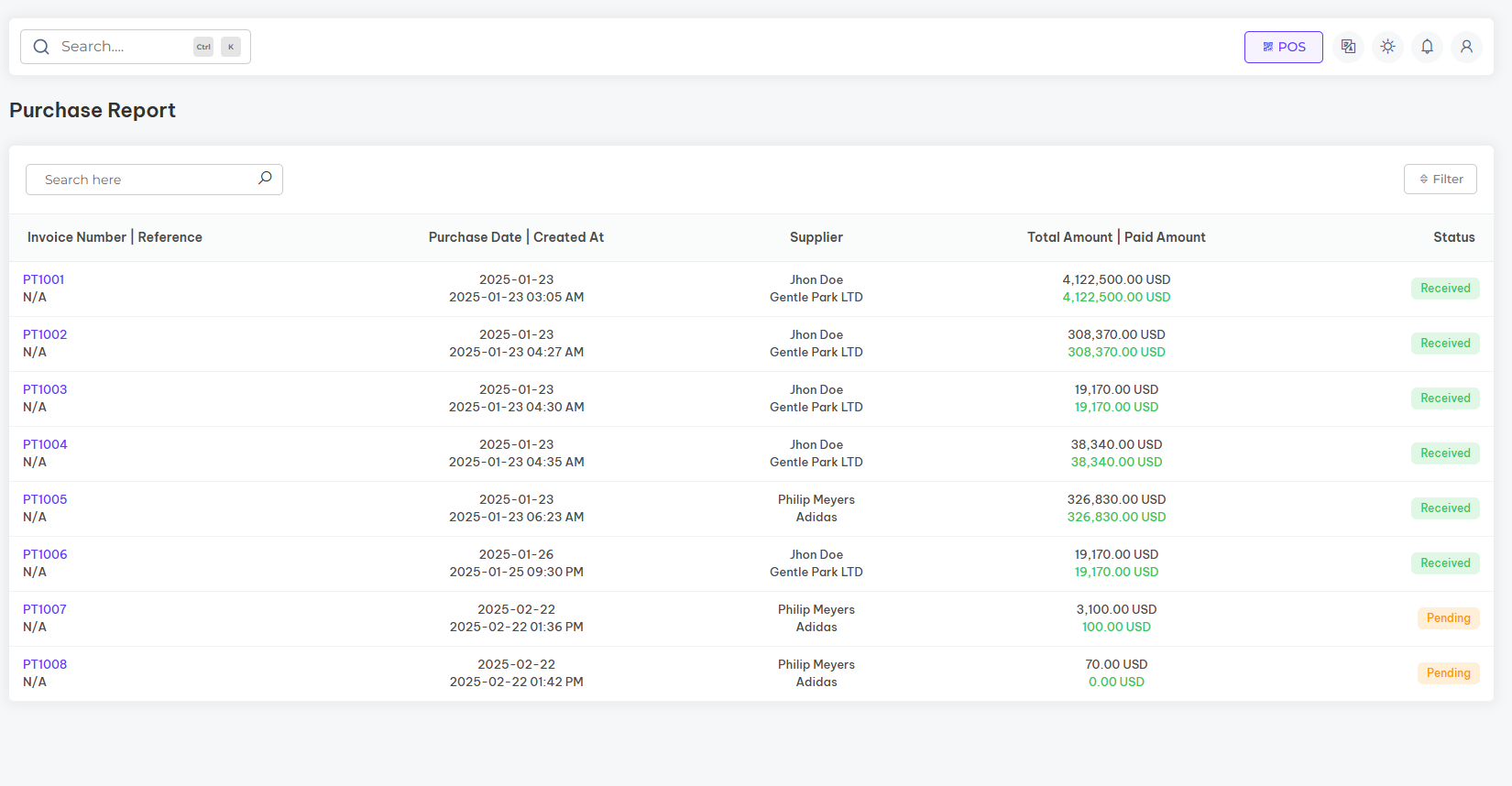
The Purchase Report section provides a detailed view of all purchase transactions. It allows you to track total purchases, monitor vendor performance, and view payment statuses. This feature helps you manage procurement efficiently, ensuring timely stock replenishment and better control over your purchasing activities.
Expense Report
Overview of the expense report
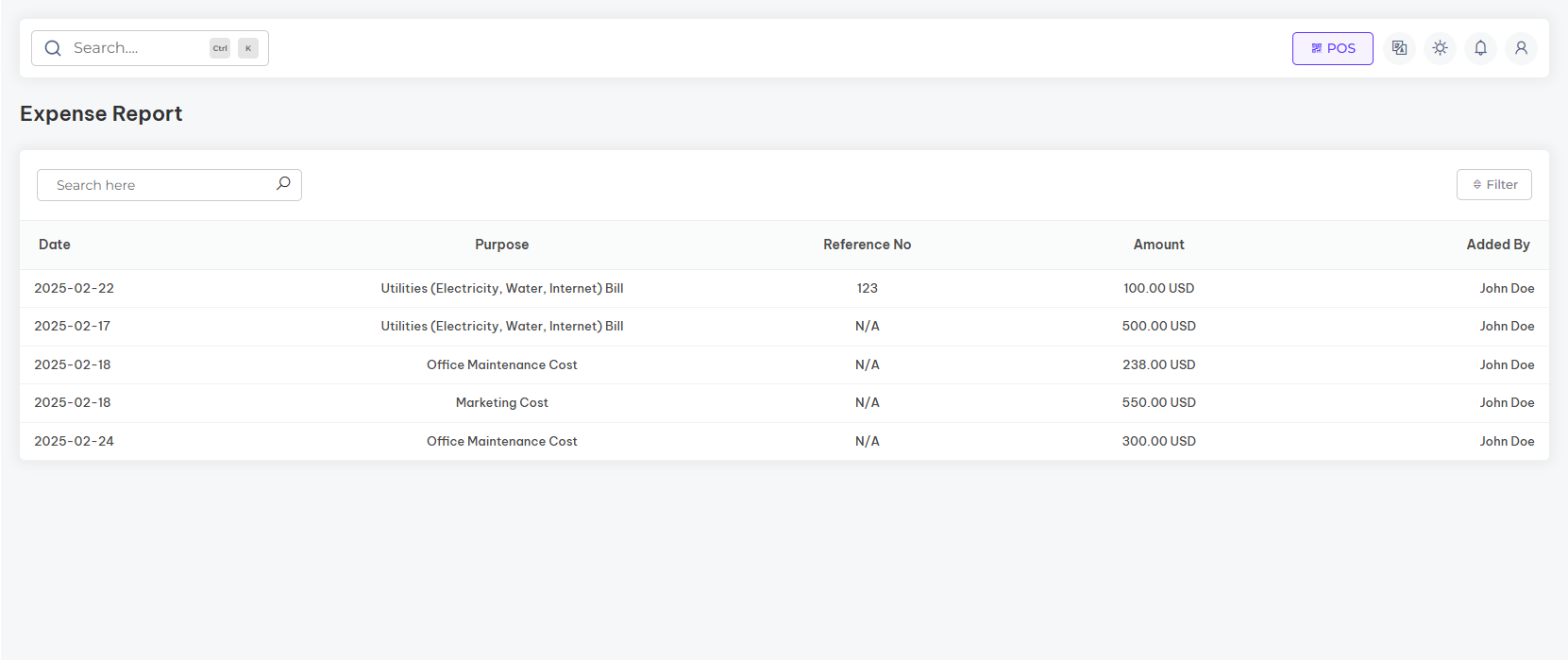
The Expense Report section offers a clear overview of all business expenses. It allows you to track and categorize costs, monitor payment statuses, and analyze spending trends. This feature helps you manage your finances effectively, ensuring transparency and better control over your business expenses.
Profit Loss Report
Overview of the profit loss report
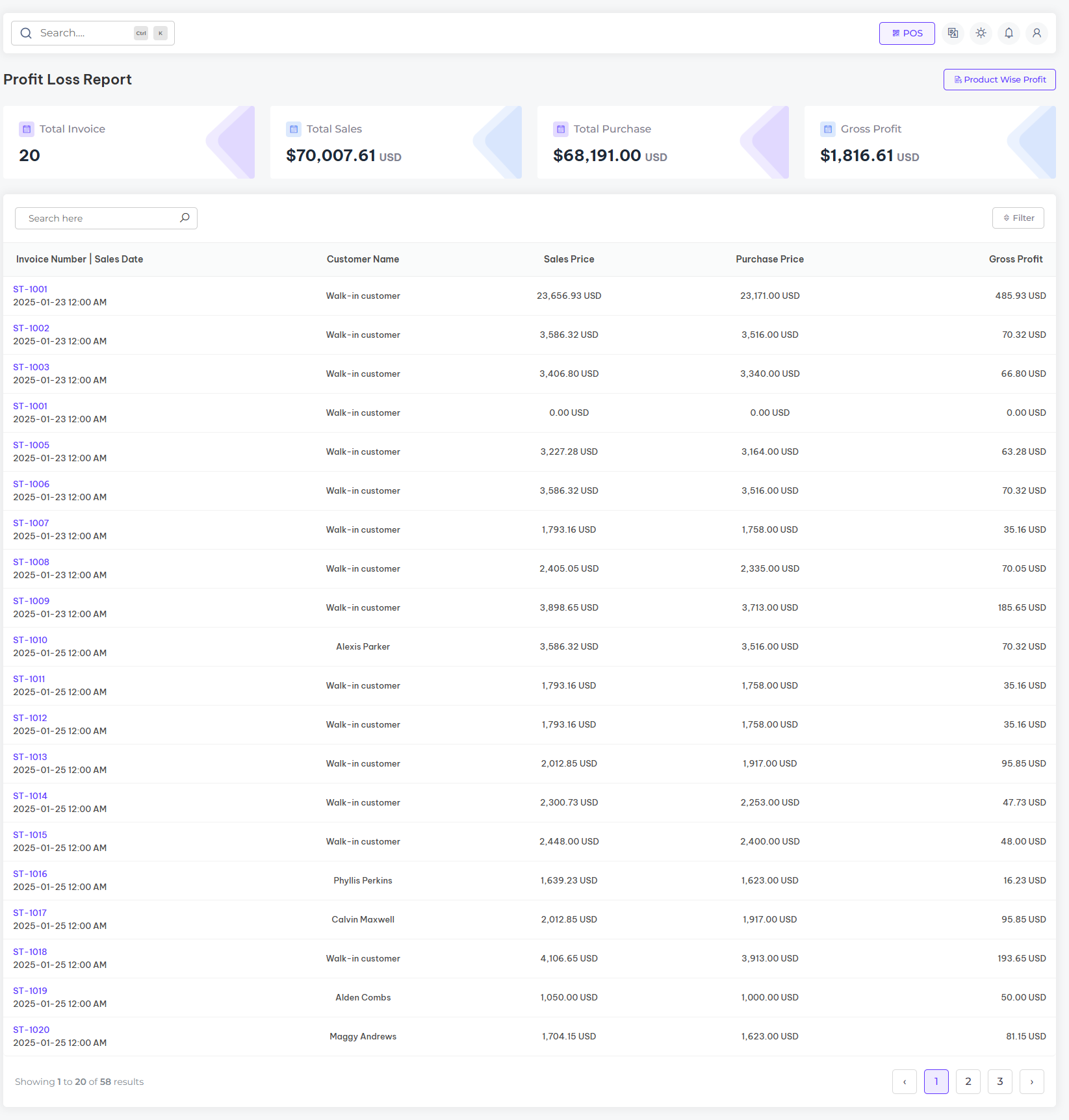
The Profit and Loss Report section provides a detailed summary of your business’s financial performance. It tracks revenue, expenses, and net profit or loss over a specific period. This feature helps you assess the profitability of your business, identify trends, and make informed financial decisions for growth and sustainability.
General Setting
General settings overview
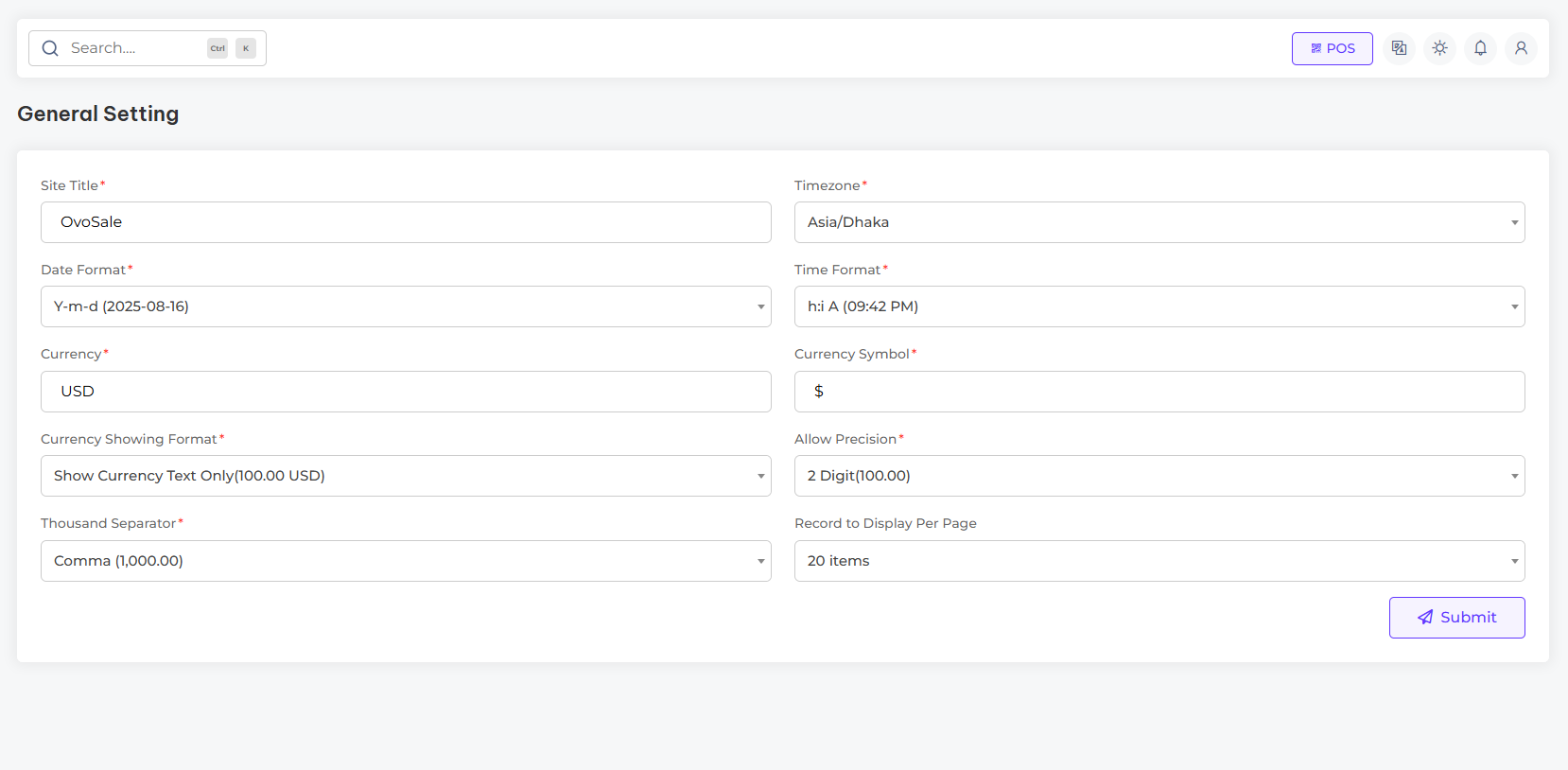
In the general settings section, you can configure the foundational details of your website. This includes setting the site title, timezone, date and time forma, currency, currency symbol, display format, precision settings, thousand separator, records displayed per page, and other essential elements that define your site’s identity.
Brand Setting
Brand settings overview
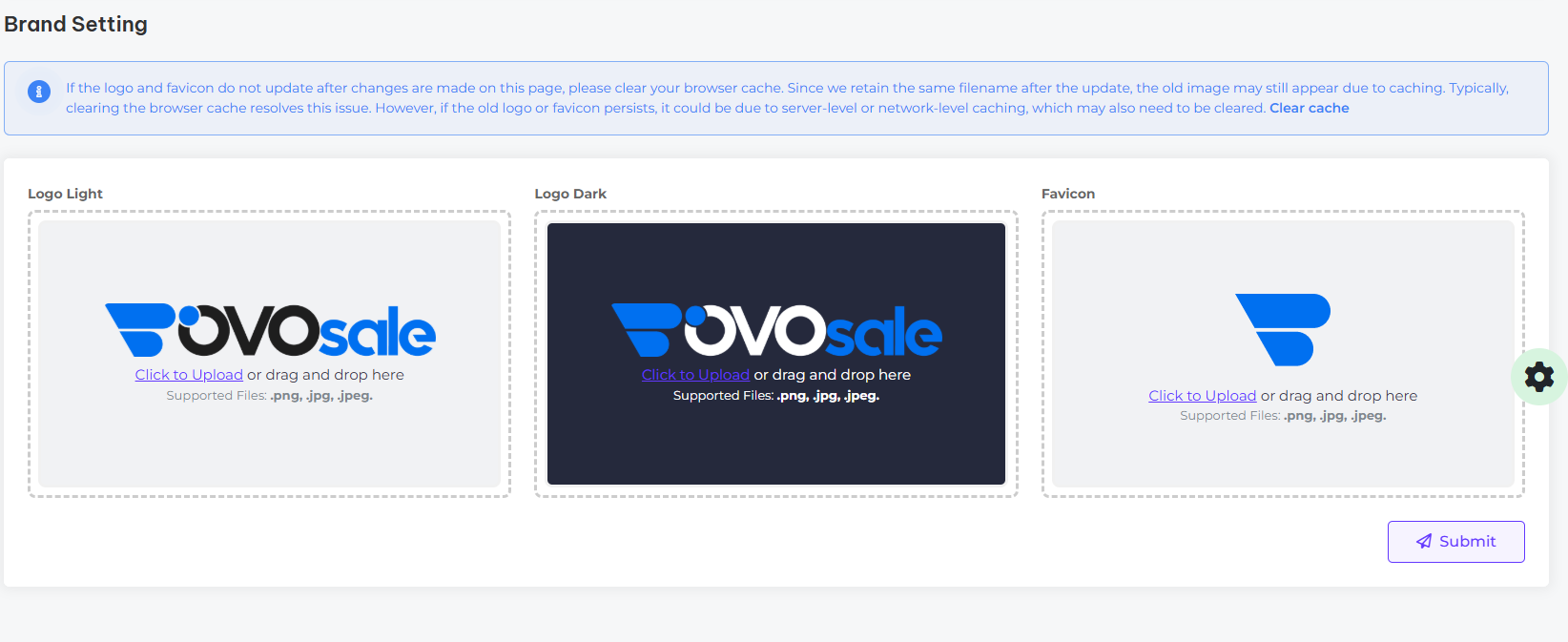
In the brand settings section, you can establish the core branding elements of your website. This includes uploading your logo in both dark and light variations, setting a site favicon, and configuring other essential elements that define your site’s unique identity.
PWA Configuration
PWA configuration overview
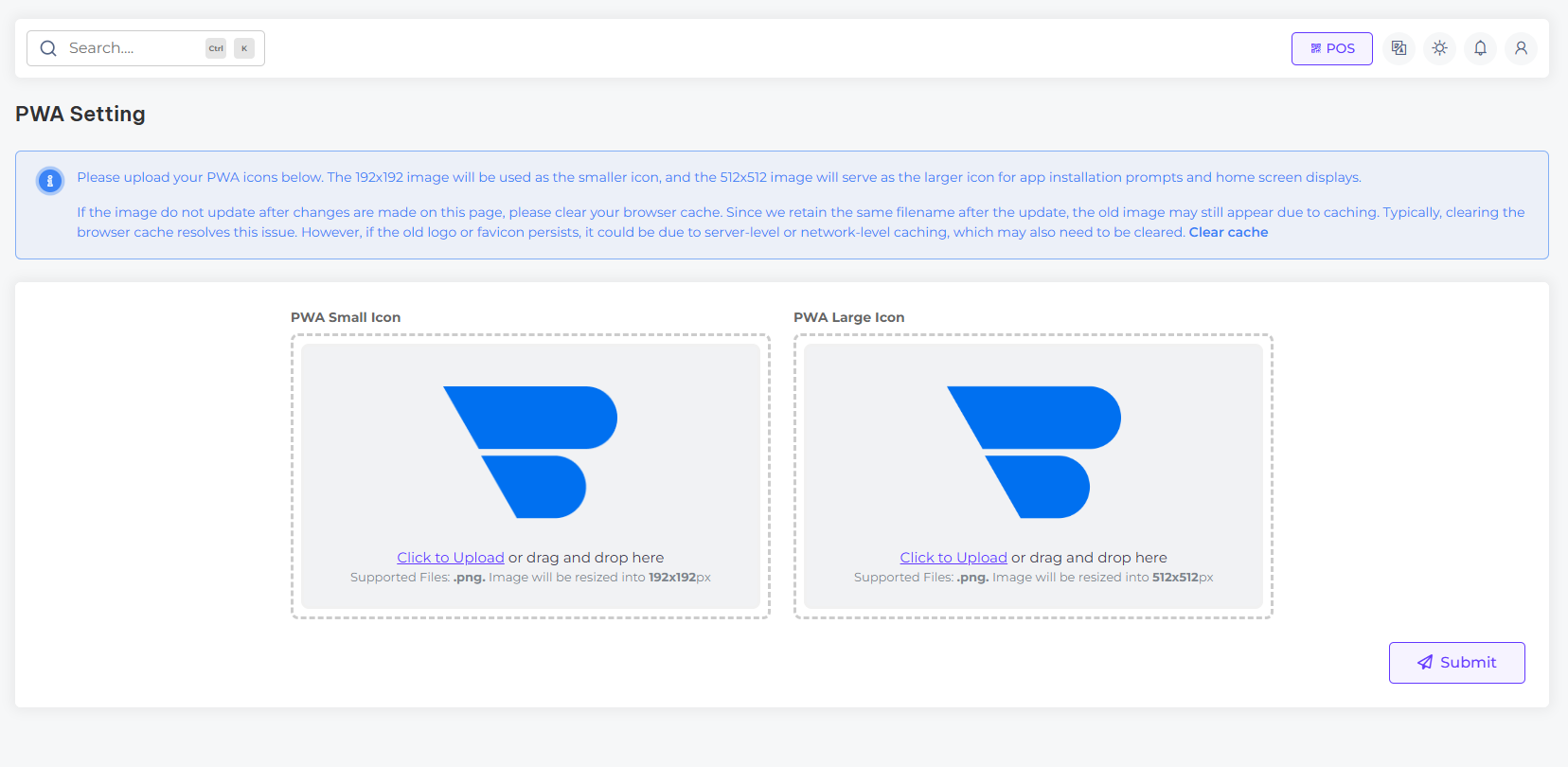
The PWA Icon Configuration section allows you to manage and customize the icons used for your Progressive Web App. You can easily upload and configure the 192x192 and 512x512 icons to ensure they appear correctly across different devices and platforms, providing a consistent and professional look for your app.
System Configuration
System configuration overview
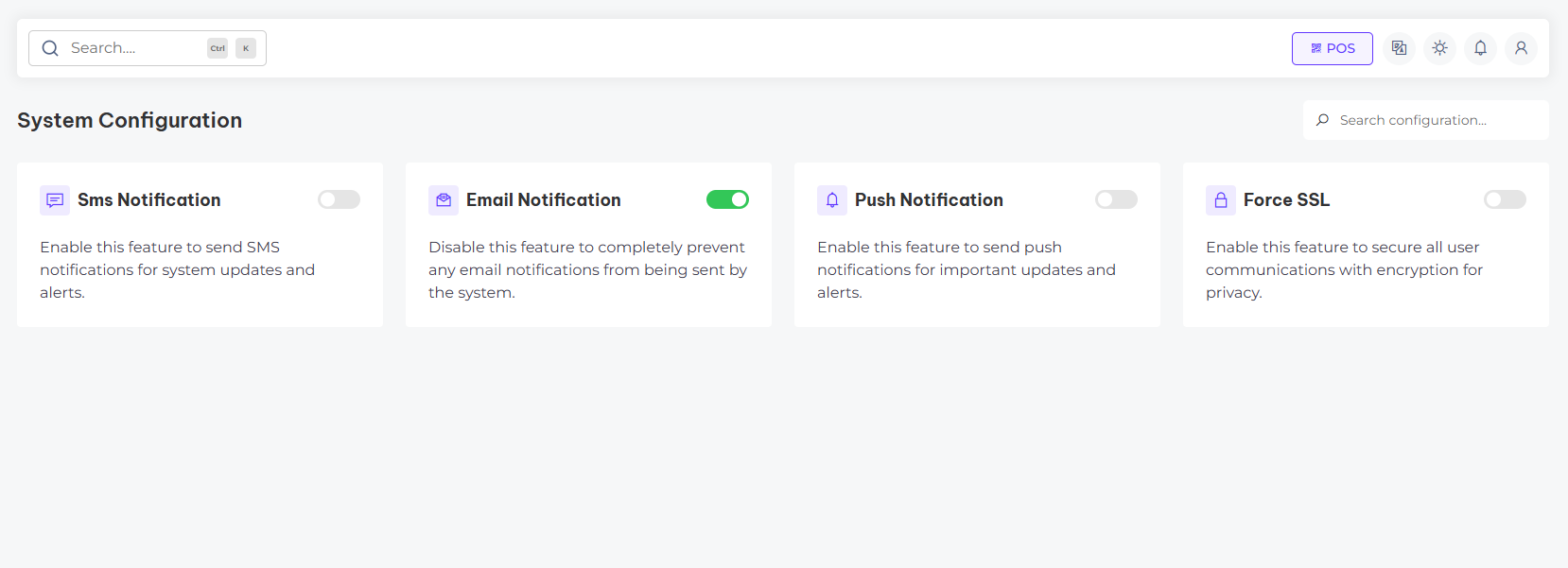
In the system configuration section, you can manage critical settings that control your website’s functionality and performance. This includes configuring server preferences, email settings, sms settings, and other essential parameters to ensure smooth and efficient system operations.
Notification Setting
Notification setting overview
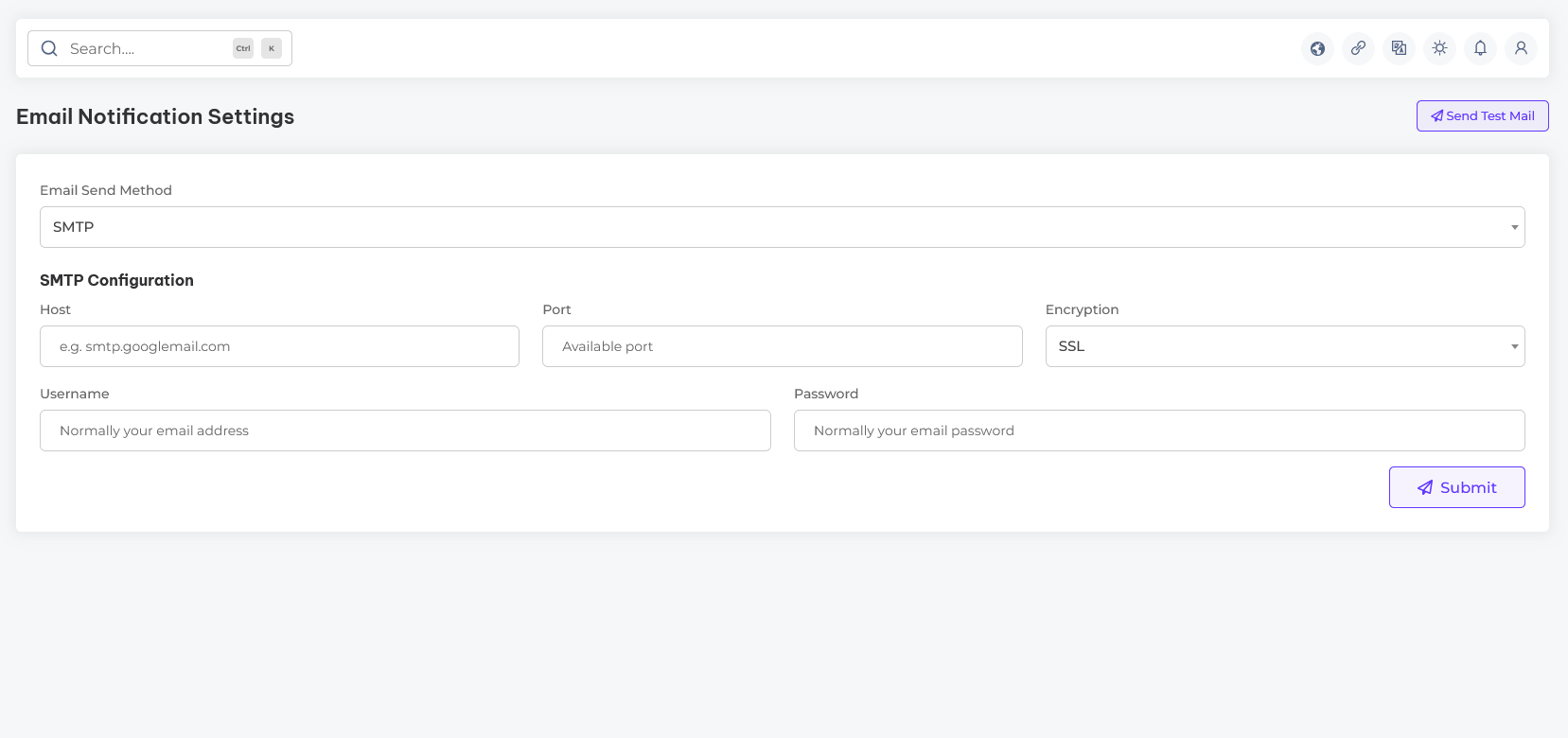
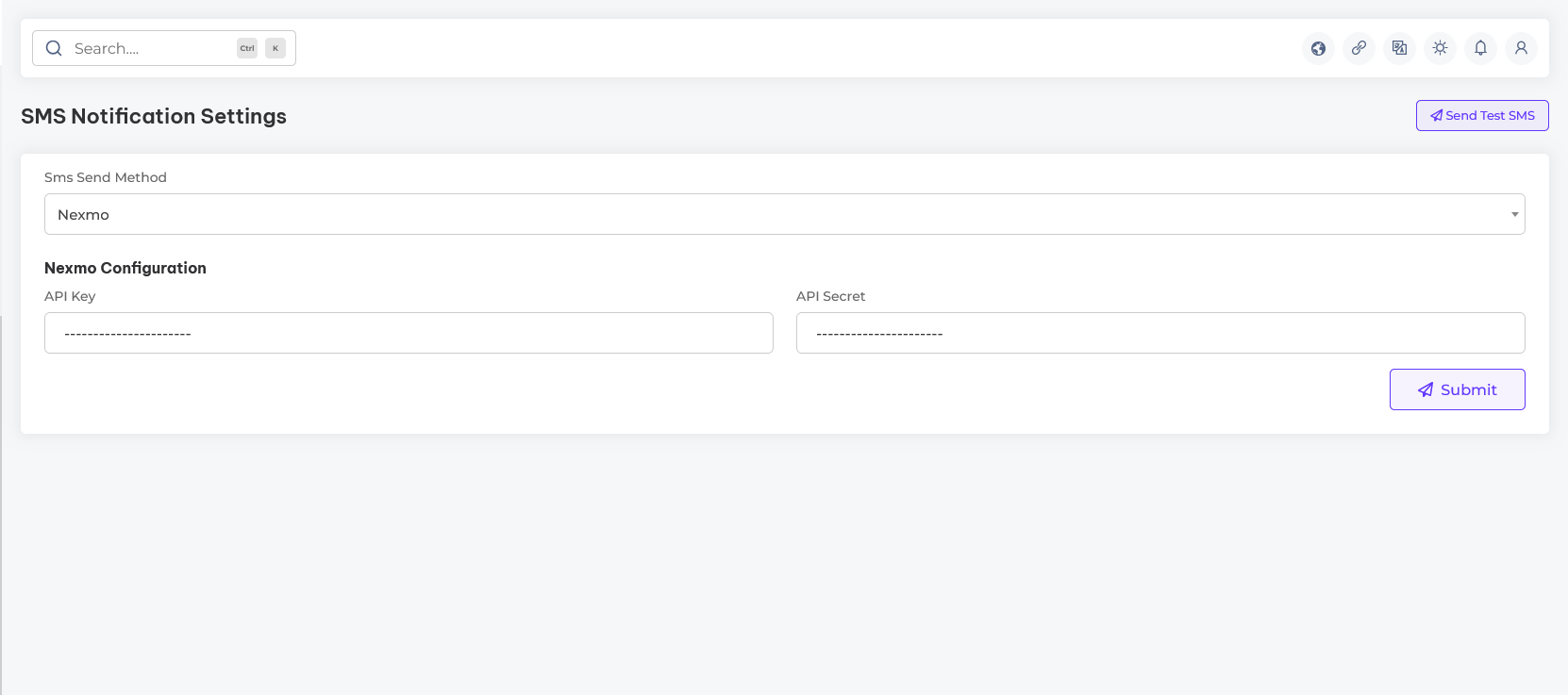
In the notification settings section, you can manage all communication channels for your system, including email notifications, SMS alerts, and push notifications. This setup allows you to keep users informed and engaged effectively across all platforms.
Extensions
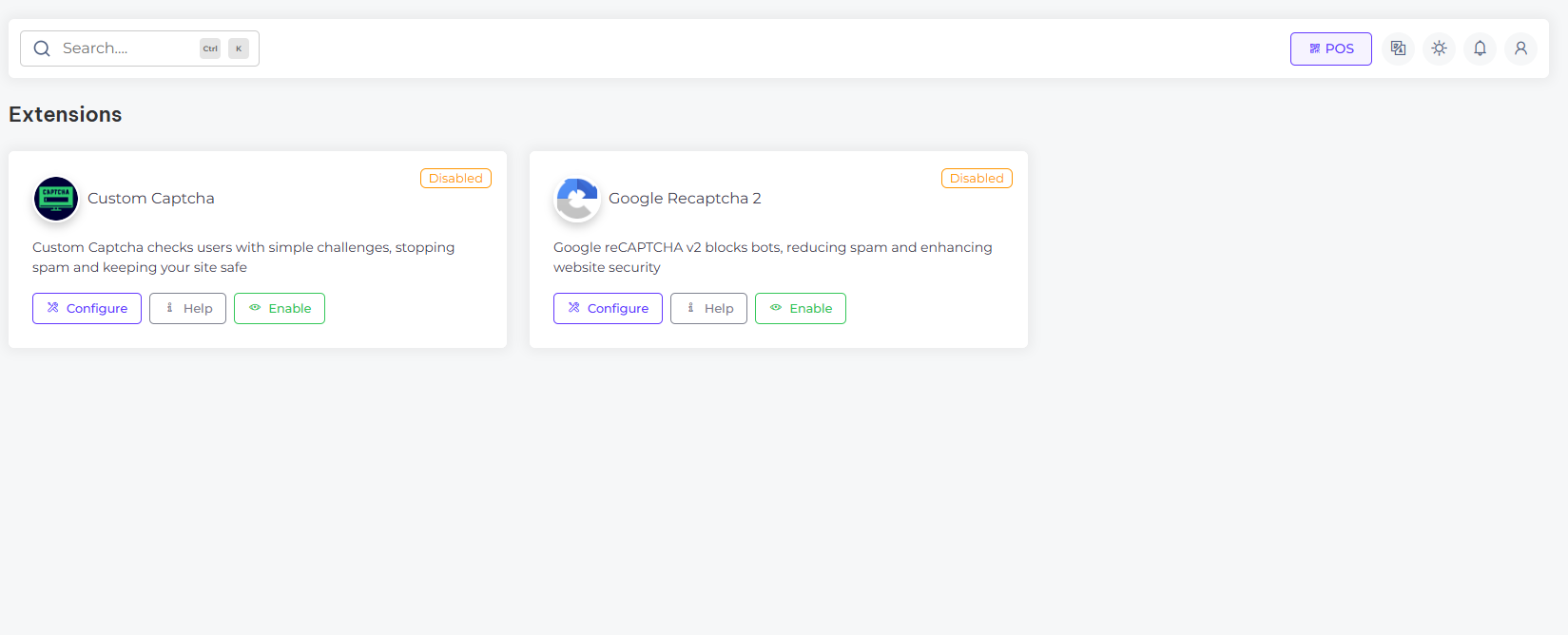
Overview of the platform integrated extensions
In the extensions section, you can manage additional features to enhance your website’s functionality. This includes integrating Custom Captcha, Google reCAPTCHA providing advanced security.
Localization
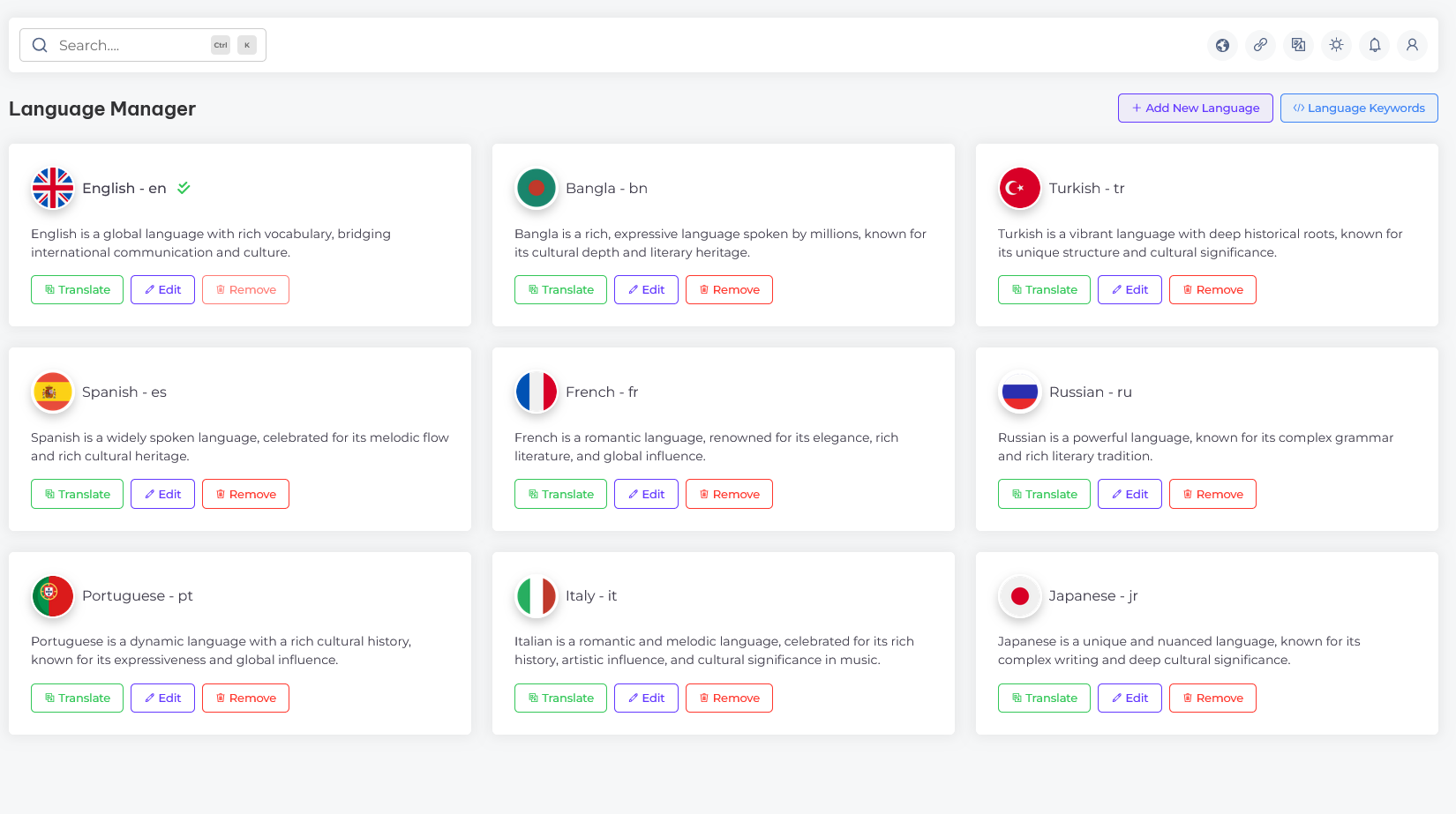
Overview of platform localization settings
In the localization section, you can configure the language settings for your website. This allows you to tailor content and functionality to suit the preferences of your target audience, ensuring a personalized user experience across different locations
Information
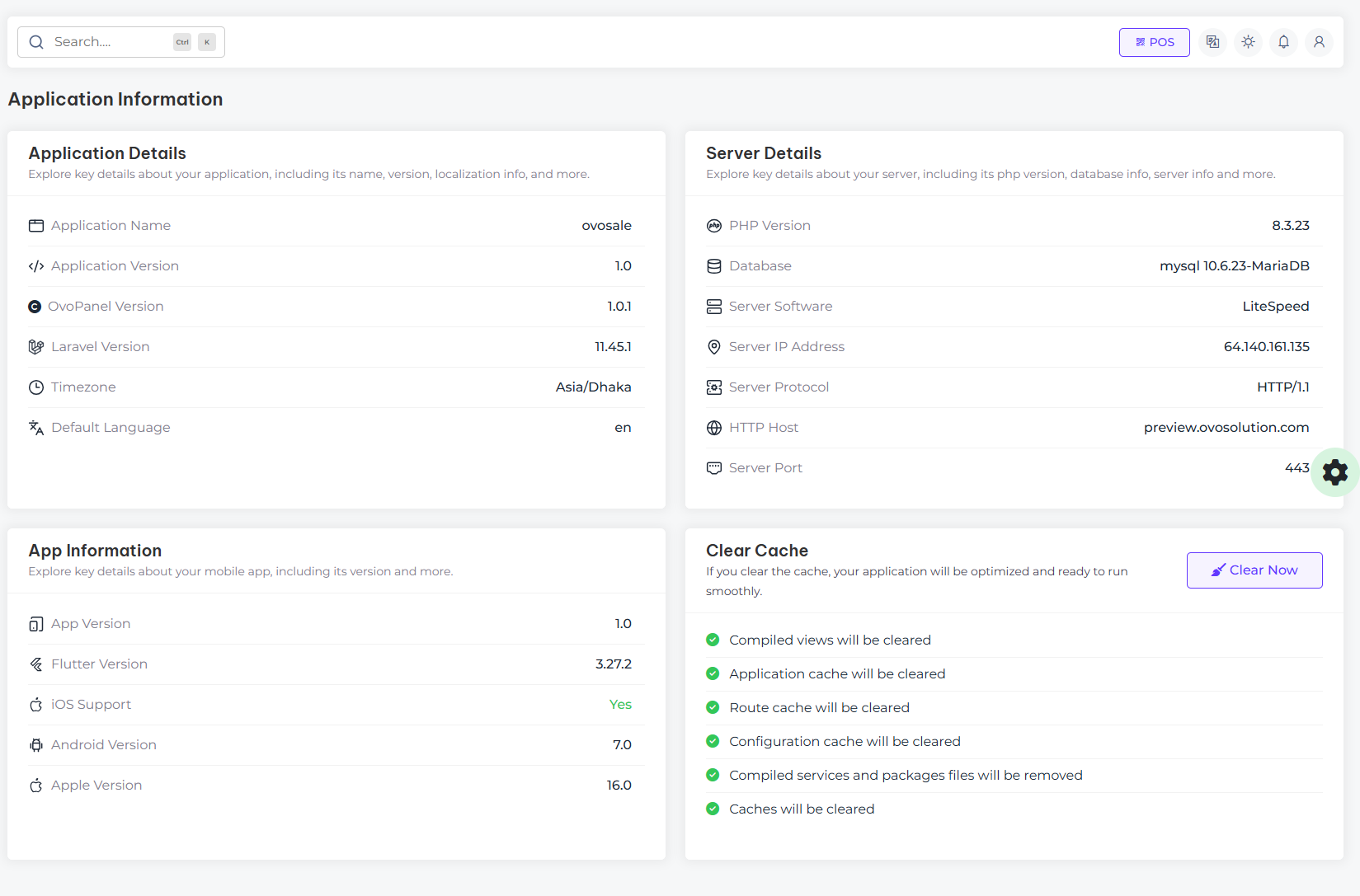
Overview of application information and technologies
In the Overview of application information & technologies section, you can find key details about your application, including its name, version, and the technologies used. This section provides an insight into the technical foundation of your application, helping you manage and maintain its infrastructure effectively.
Support
How to get assistance
Thank you for purchasing our product! For any support or assistance, feel free to reach out to us via the provided email address. Our dedicated support team is available 24/7, ready to help with any questions, technical issues, or inquiries you may have. We are committed to providing prompt and reliable assistance to ensure a seamless experience with our product. Your satisfaction is our priority, and we are here to support you every step of the way.