
Introduction
Overview of OvoShorts - Complete Cross Platform Short Video & Reels Sharing Solution | Web and Mobile App
OvoShorts is a global short video and reels sharing platform that enables users to create, share, and discover engaging content through a dynamic reels-style feed. With features like live messaging, following system, favorites, verified badges, star-based creator support, and advanced audience analytics, OvoShorts provides a complete ecosystem for content creation, community building, and creator growth across mobile and web.
This documentation provides a clear overview of the entire system, summarizing the core processes for easy understanding. The platform includes an intuitive admin panel and landing page, designed for seamless use without any coding expertise. It also integrates multiple automated online payment gateways, simplifying global transactions effortlessly.
Thank you for choosing OvoShorts If you have any questions not covered in this documentation, please feel free to reach out to us via email. We’re here to assist and will respond as promptly as possible. Thank you again!
Server Requirements
All server requirements are stated bellow
The following server requirements outline the essential specifications for setting up and running the system efficiently. Meeting these requirements will ensure smooth operation, enhance performance, and support seamless functionality across all features. Please verify your server configuration aligns with these standards prior to installation.
- PHP Version 8.3 or 8.3+
- MySQL Version 8.0+ or MariaDB version 10.6+
- BCMath PHP Extension
- Ctype PHP Extension
- cURL PHP Extension
- DOM PHP Extension
- Fileinfo PHP Extension
- GD PHP Extension
- JSON PHP Extension
- Mbstring PHP Extension
- OpenSSL PHP Extension
- PCRE PHP Extension
- PDO PHP Extension
- pdo_mysql PHP Extension
- Tokenizer PHP Extension
- XML PHP Extension
- Filter PHP Extension
- Hash PHP Extension
- Session PHP Extension
- Zip PHP Extension
- allow_url_fopen()
- file_get_contents()
Installation
Application installation process
Installation is straight forward and can be completed in a few simple steps. Our setup process is designed to be seamless and efficient, ensuring a smooth start
Installation Steps:
-
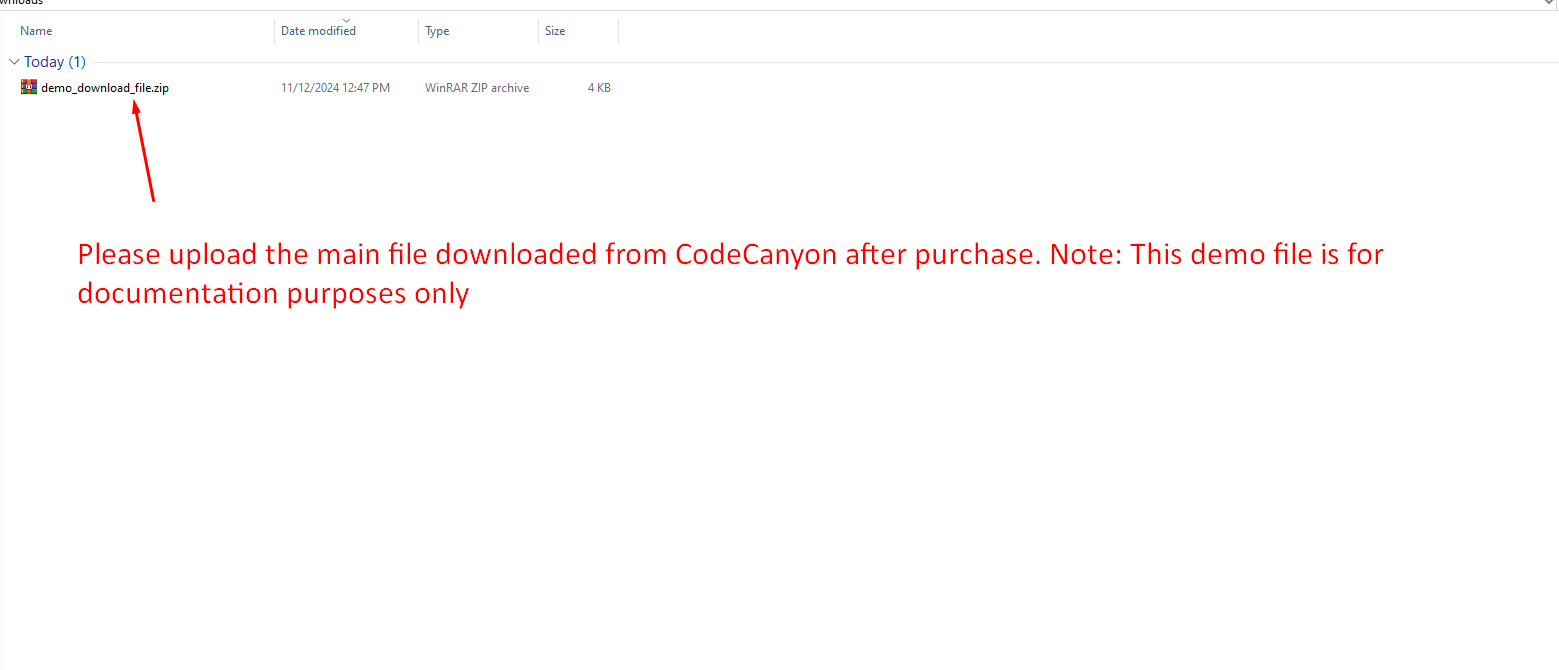
Upload the downloaded files directly to your server after purchase to
begin setup.
-
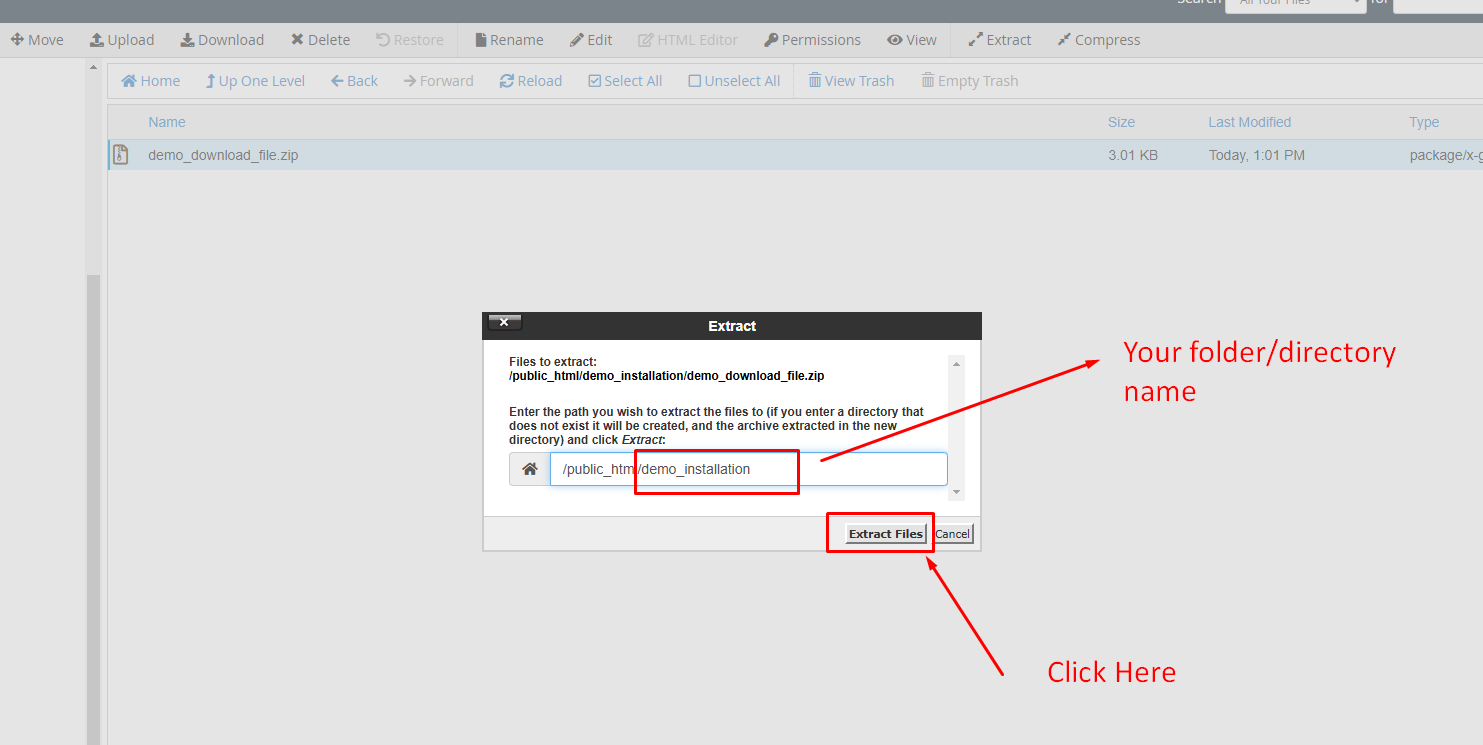
Extract the downloaded file and move all contents from the
Filesfolder to your desired installation directory. Ensure that bothindex.phpand.htaccessare included.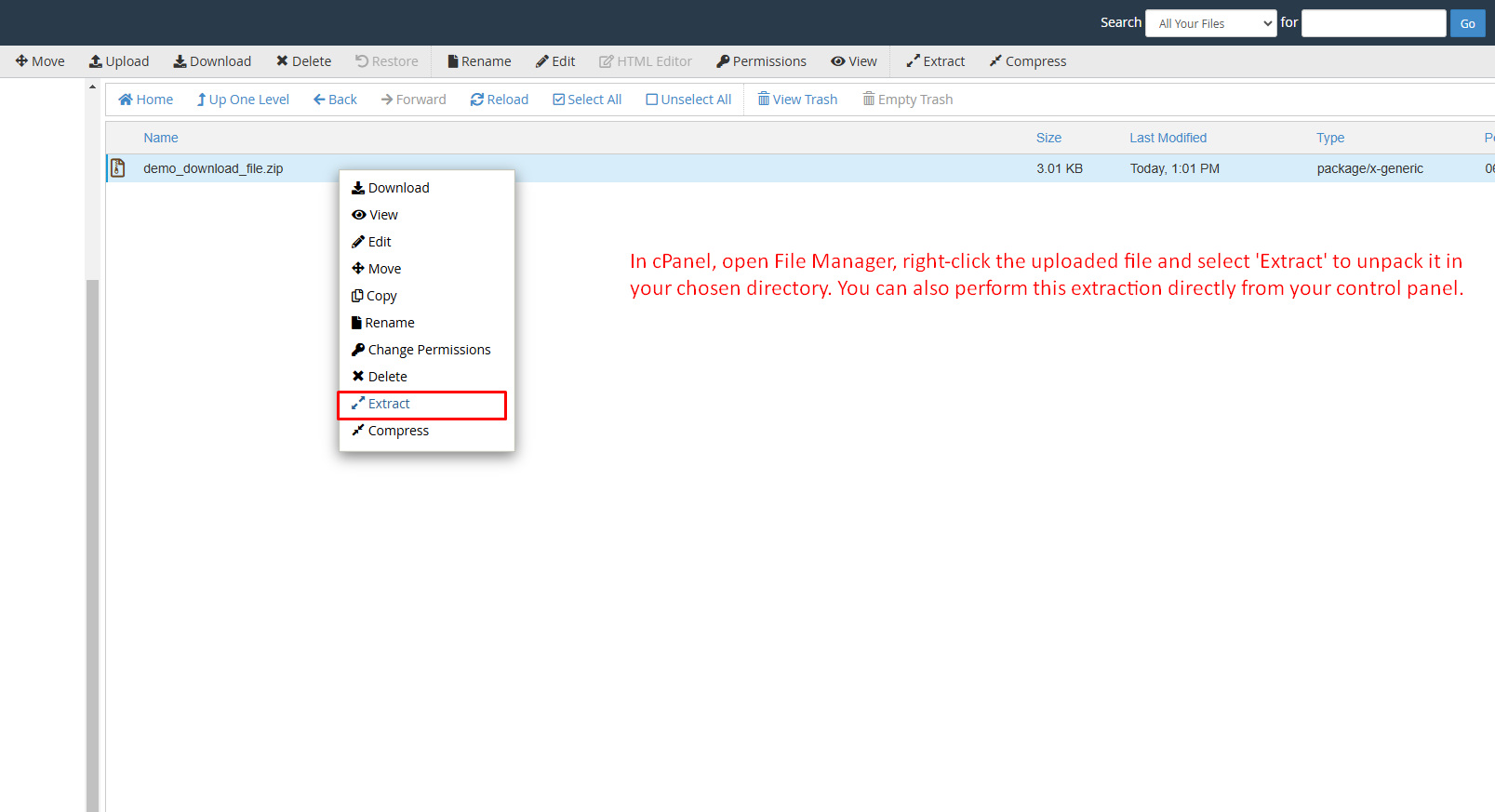
-
Quickly set up your database using the
Database Wizard/Managerin your control panel.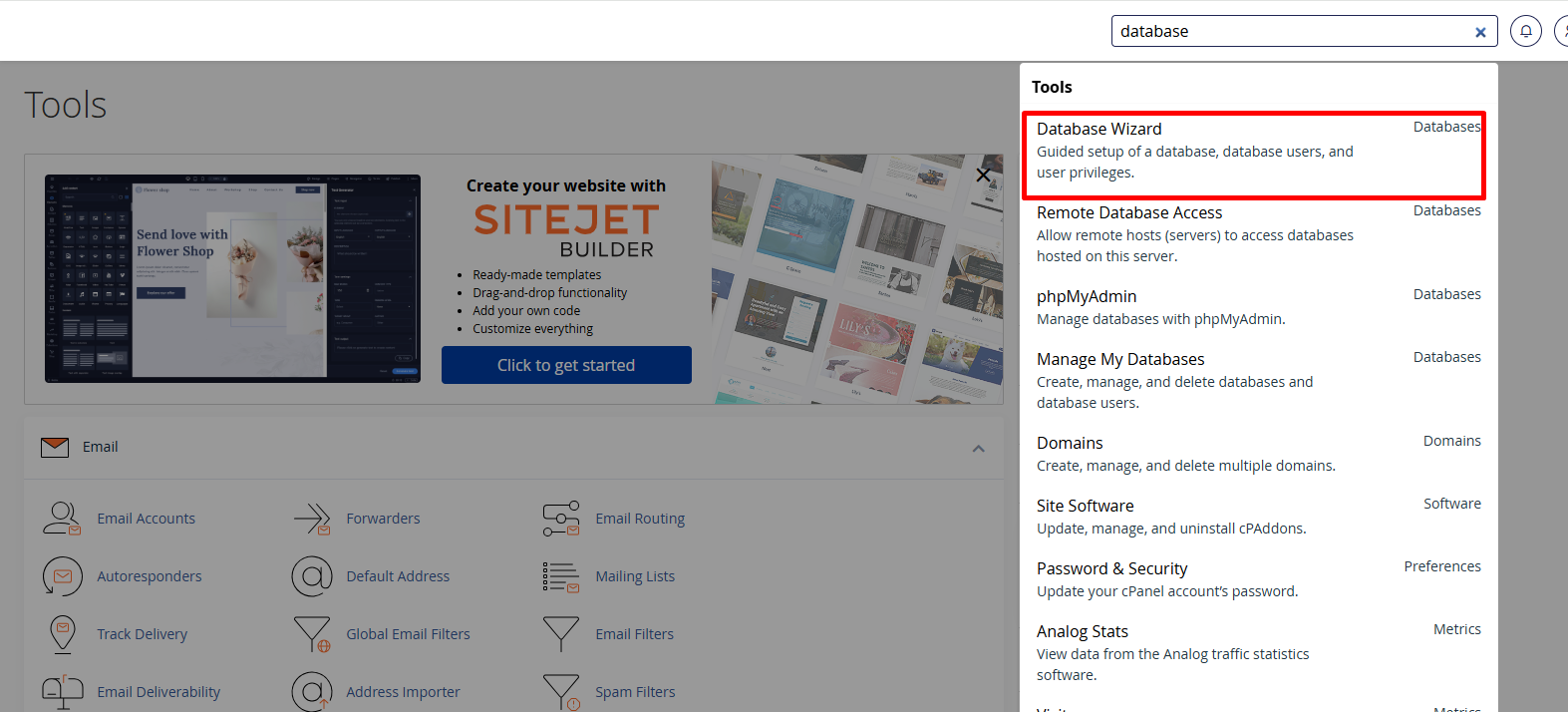
-
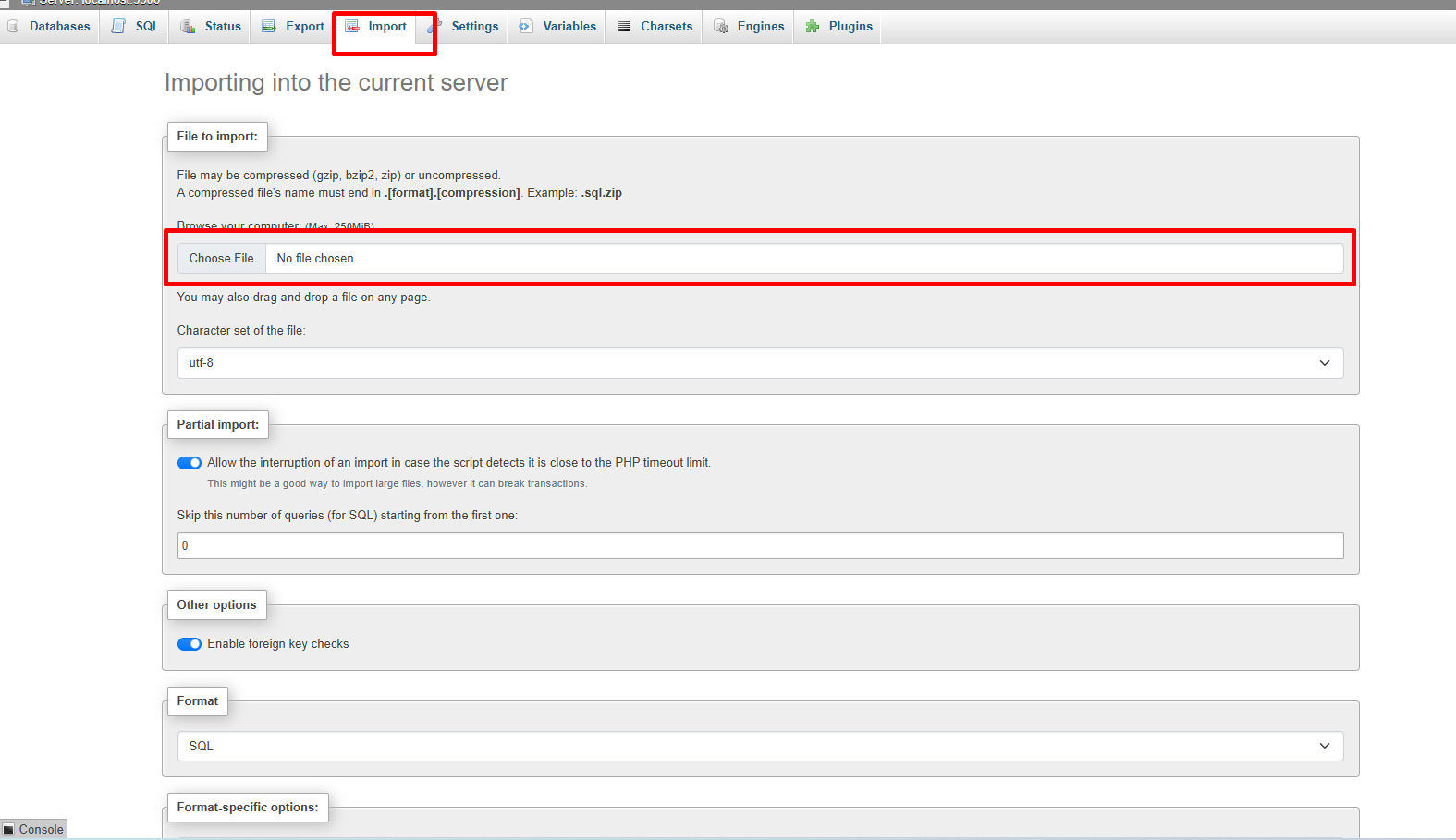
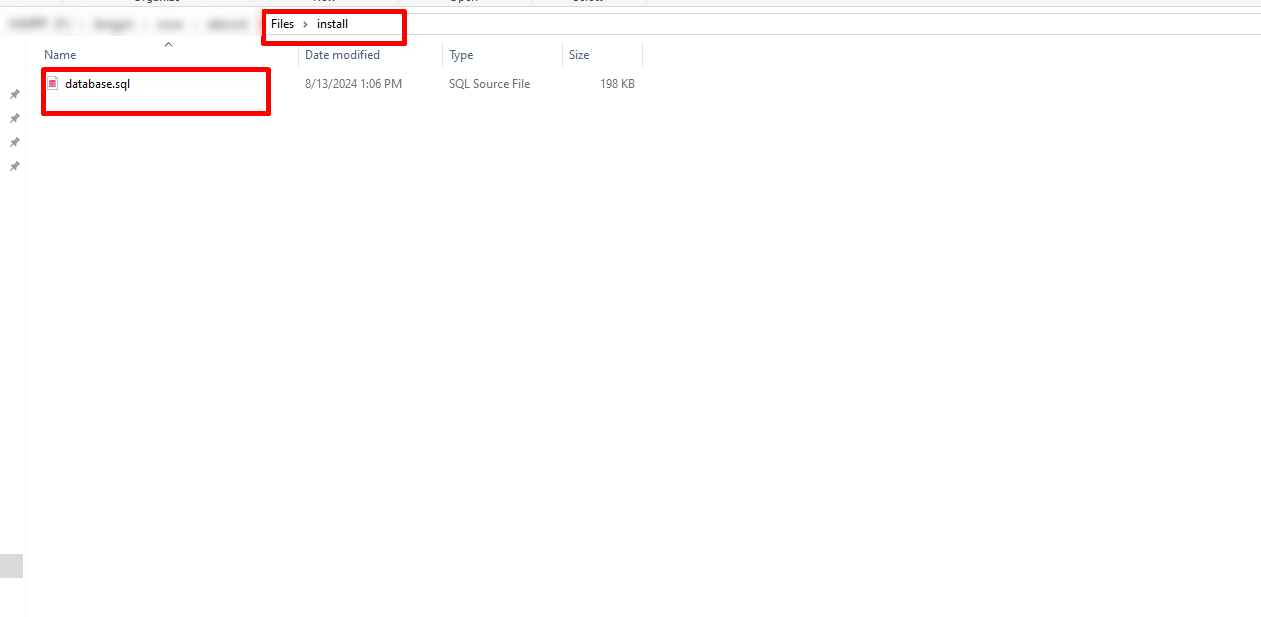
After creating the database, access
phpMyAdminon your server, select the newly created database, and import the project database from theFiles/Installationfolder.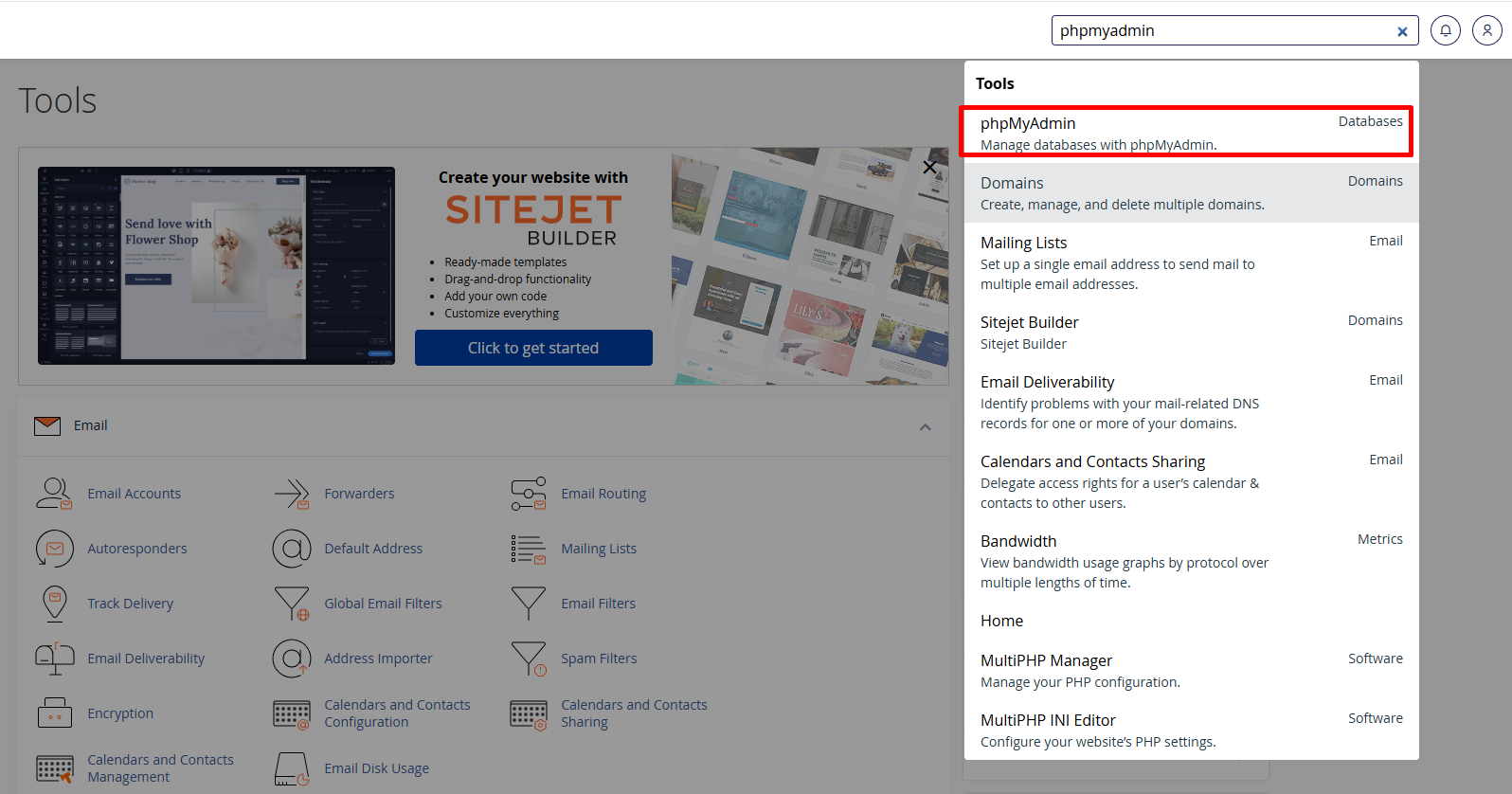
-
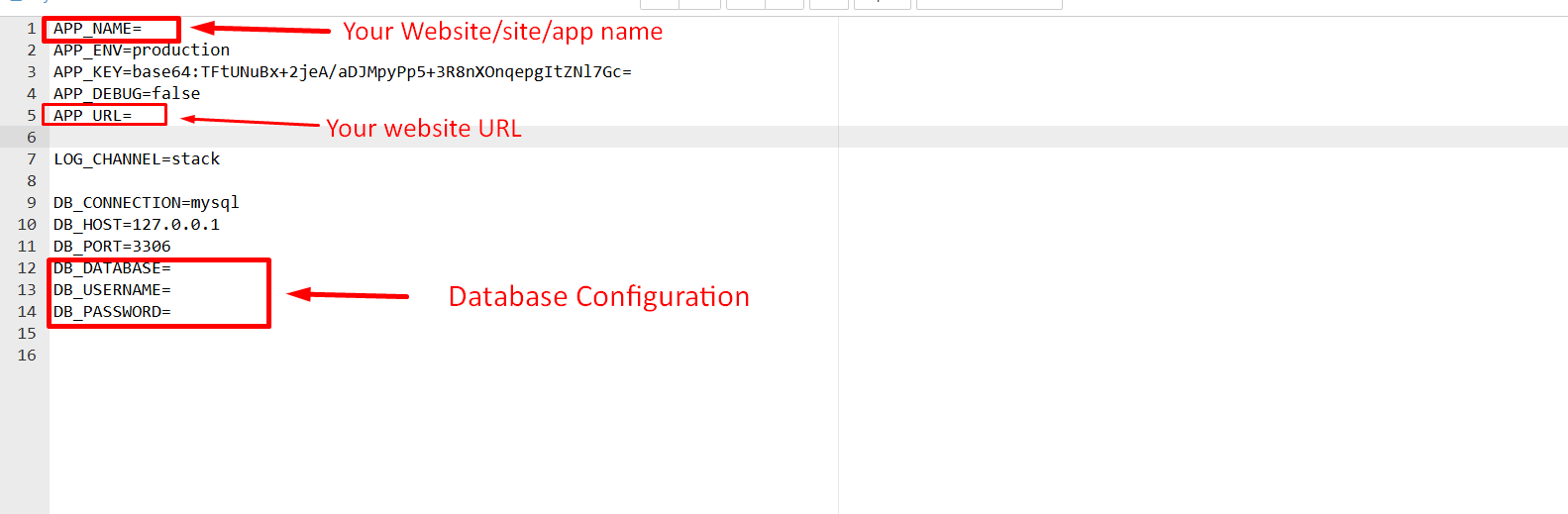
After importing the database, configure the
database credentialsin the.envfile and update the necessaryenvironment variables.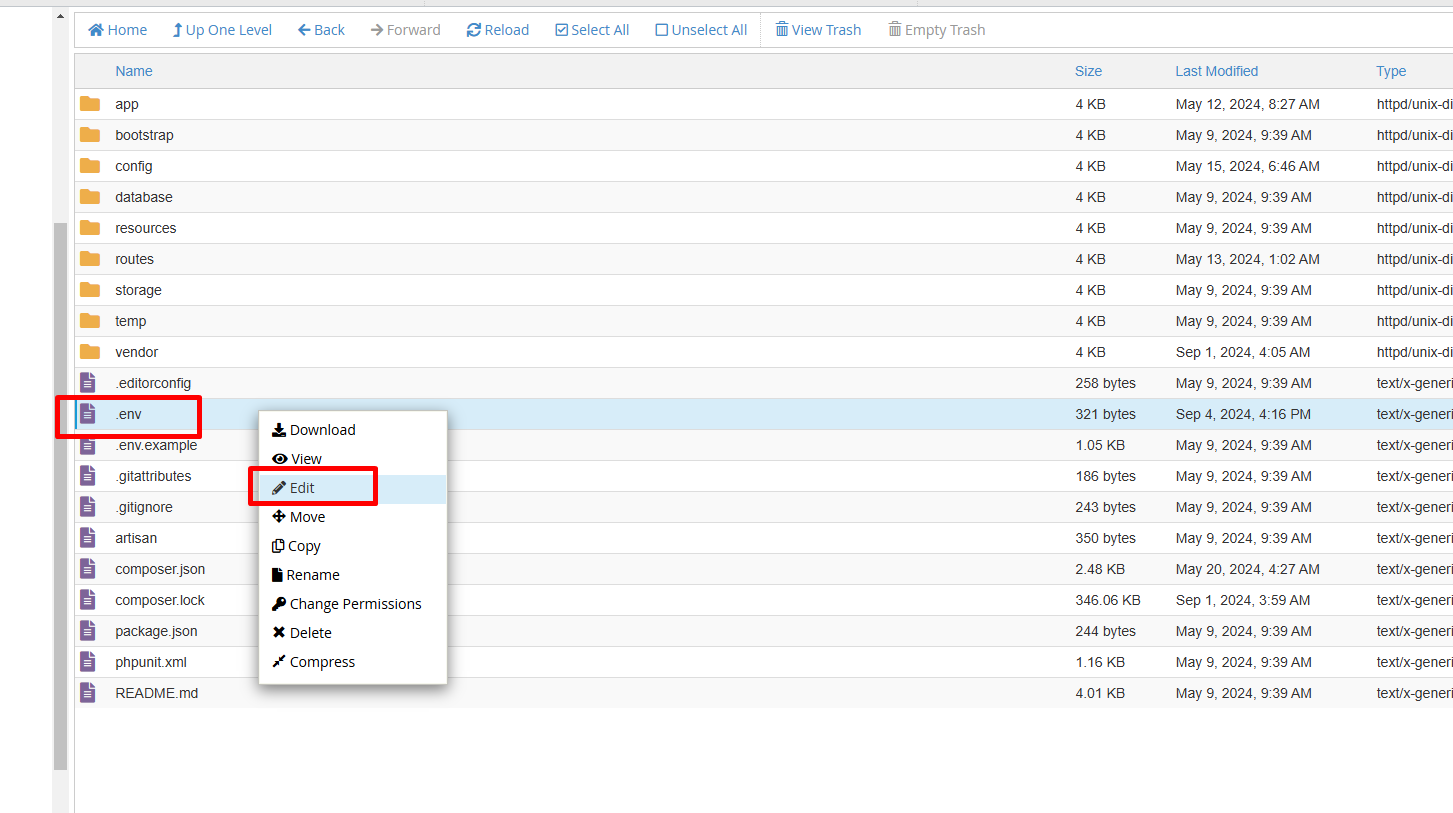
-
Installation is almost complete. Your site is now ready to browse.
Simply visit
http://your-site-url/adminand log in with the credentials below- username:admin
- password:admin
-
After logging in, please change the password for security. Also, remember to remove the
installationfolder once the project is successfully installed. -
If you're still unable to install the system, please contact us. We offer free installation on cPanel-based hosting.
Folder Structure
Important details about the application folder structure
After installation, your main folder will contain two folders and two files essential for the proper functioning of the application.
- assets
- core
- .htaccess
- index.php
-
In the
assetsfolder, you'll find all the necessary assets such as CSS, JS, and images. If you need to edit or modify any CSS or JS, this is the folder to access. -
The
corefolder contains the core Laravel files, maintaining the full MVC structure of the project for seamless functionality and organization.
Admin Dashboard
Overview of the admin dashboard
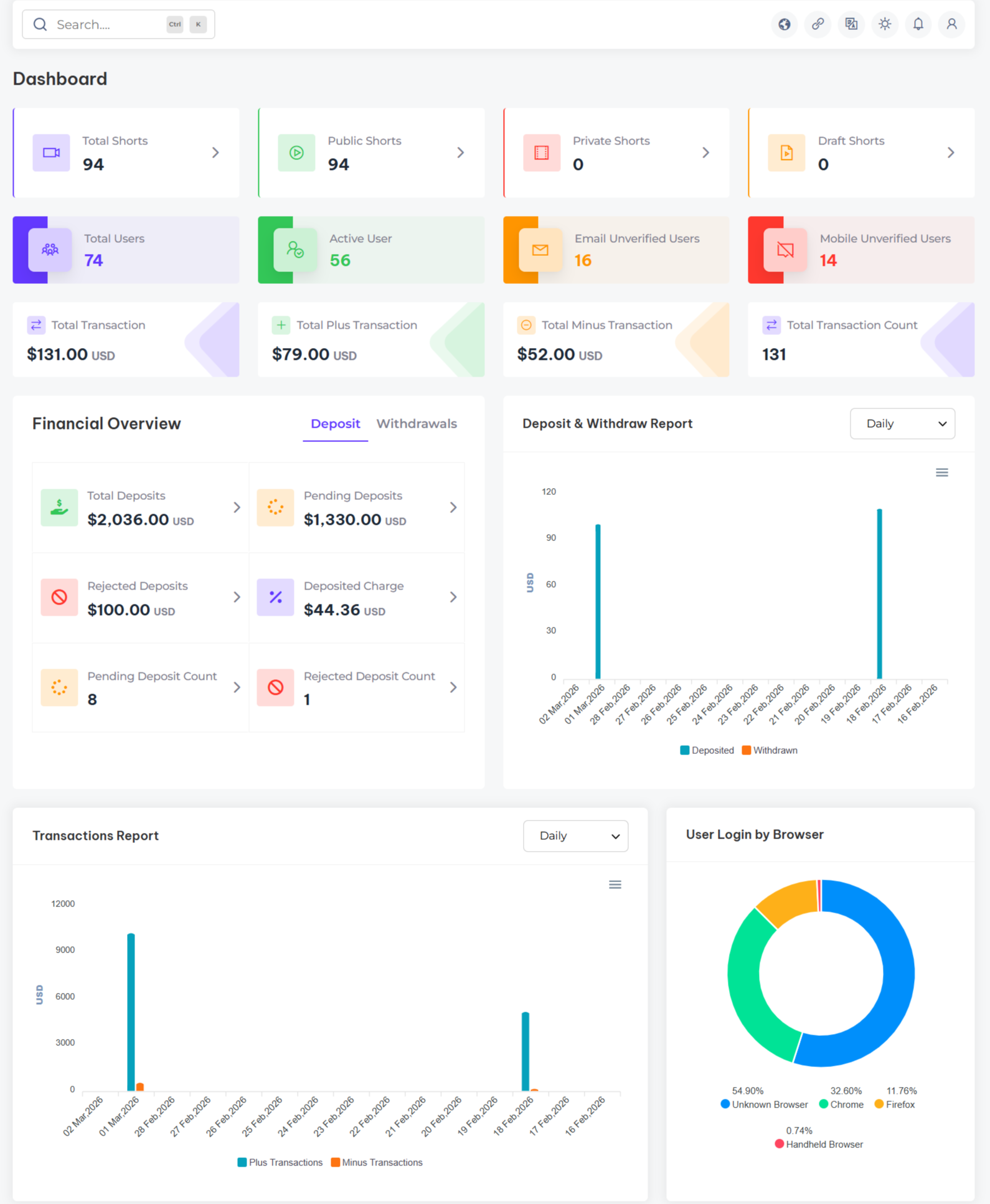
The items include the latest secure admin panel with a unique admin dashboard. By logging into your dashboard, you can easily view and manage all key information related to your website. From this dashboard, you'll get a comprehensive overview of your system, including user statistics, shorsts, total deposits, withdrawals, and more. Additionally, you can track and compare system transactions with graphical data for better insights.
Shorts
Overview of the shorts
Manage Shorts allows administrators to efficiently oversee the complete lifecycle of short video content. With categorized views for Draft, Private, Public, Scheduled, Pending, and Unpublished shorts, admins can quickly review content, access detailed video insights, and control visibility by publishing or unpublishing when required.

Ad Management
Overview of Advertise Management
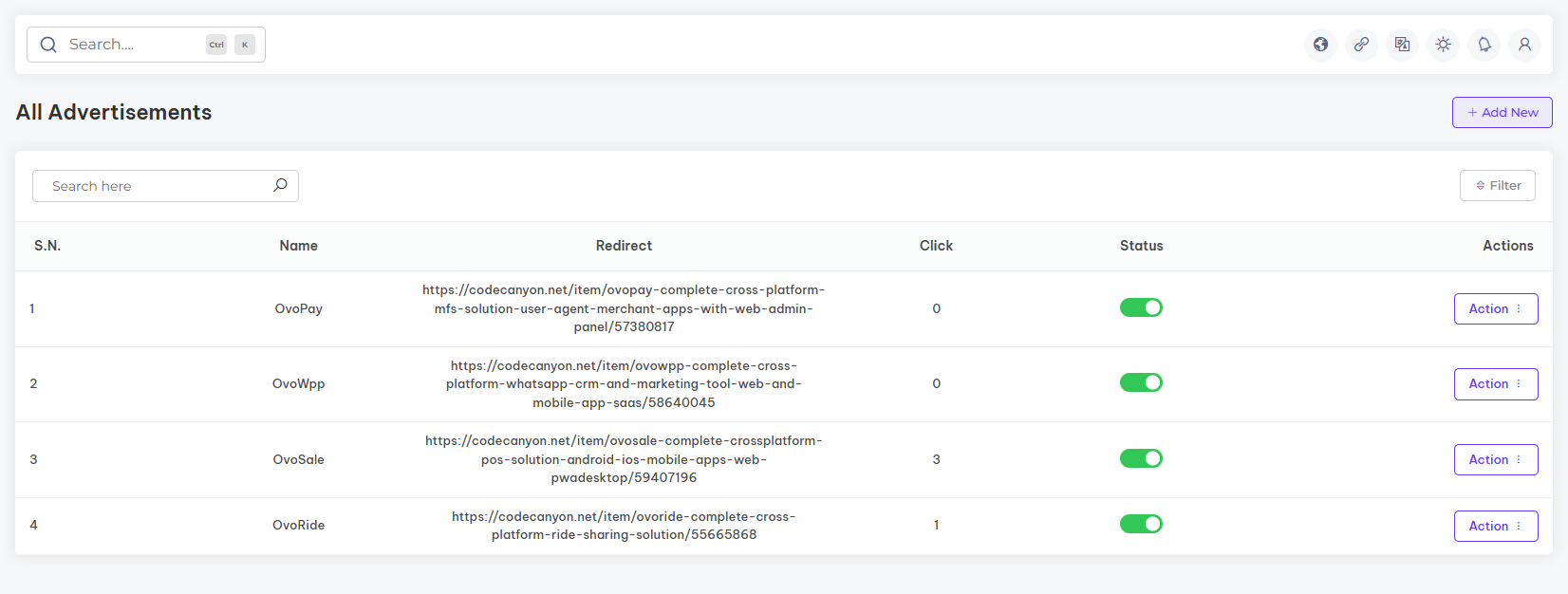
Manage Ads provides a centralized environment for configuring and monitoring short video advertisements. Administrators can upload MP4 ads, assign external links, control ad frequency within the shorts feed, activate or deactivate ads, and track click performance enabling structured ad management.
Star Plan Packages
Overview of the star plan packages
Star Package allows administrators to create and manage star purchase plans used for rewarding content creators. Admins can define the package name, star quantity, and pricing, as well as control plan availability by setting each package as active or inactive. These plans determine the value users can purchase and use to send stars across the platform.

User
Overview of the platform Users
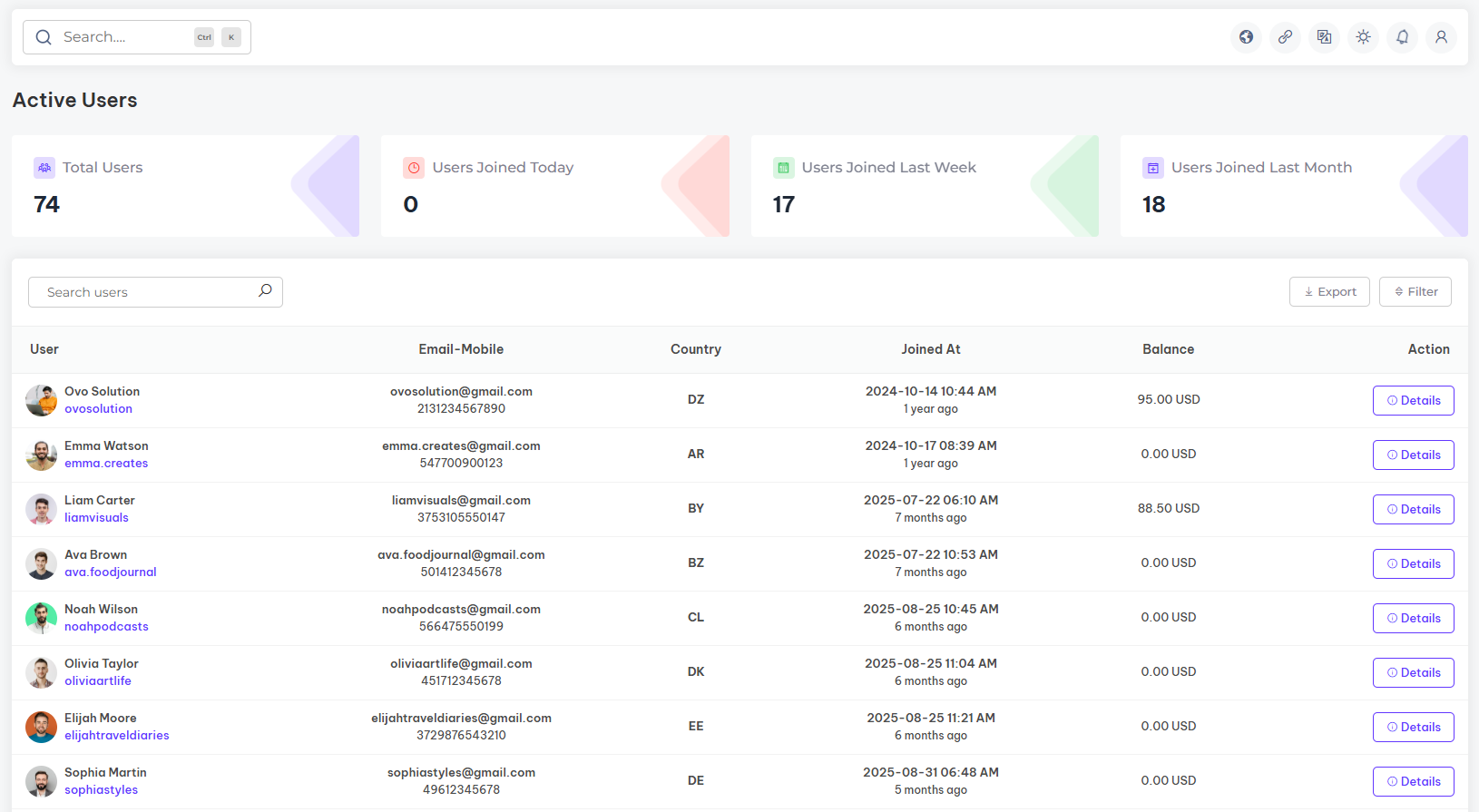
In the manage users section, you can oversee all registered users on the platform. This includes viewing users profiles, tracking users subscription, managing status, and handling any necessary updates to ensure a smooth and reliable experience for all users.
Manage Deposit
Overview of the platform Deposit
In the Manage deposit section, you can manage and track all deposit transactions made by drivers. This includes reviewing deposit details, confirming payments, and ensuring accurate records to maintain financial transparency and support drivers effectively.

Manage Withdrawals
Overview of the platform Withdrawals
In the manage withdrawals section, you can oversee and process withdrawal requests from users. This includes reviewing withdrawal details, approving transactions, and maintaining accurate records to ensure timely and transparent payouts.

Payment Gateway
Overview of the platform-integrated payment gateway
In the payment gateway section, you can configure and manage both automatic and manual payment gateways. This includes setting up preferred payment methods, ensuring secure transactions, and offering flexibility in payment options for a seamless user experience

Withdrawal Methods
Withdrawal methods overview
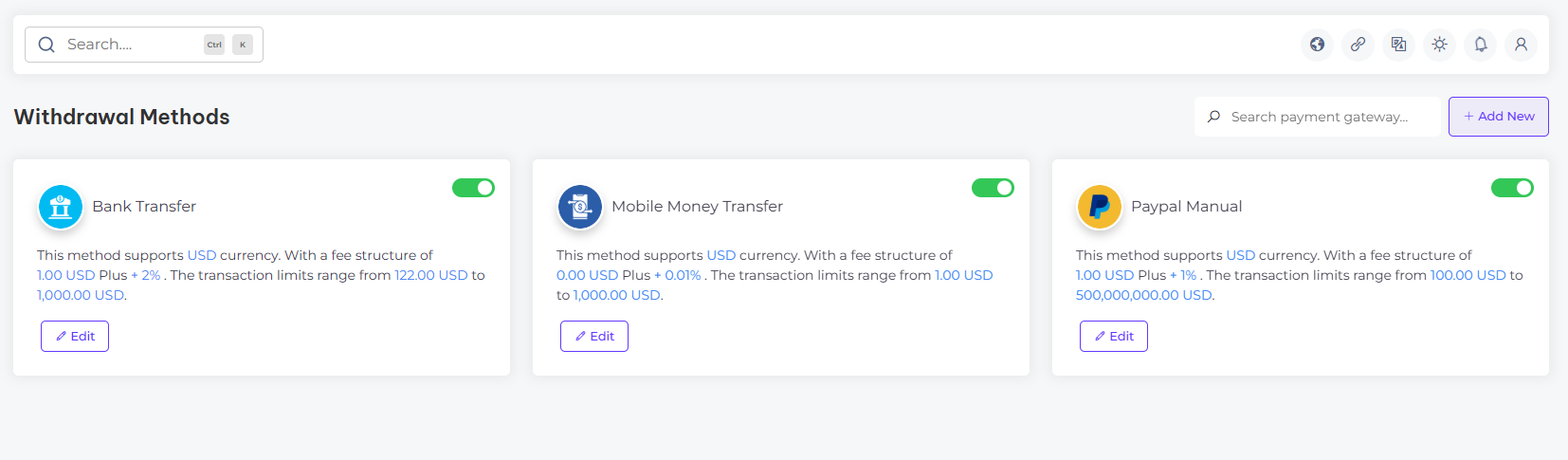
In the withdrawal methods section, you can set up and manage available options for users to withdraw funds. This includes configuring various withdrawal methods, defining limits, and ensuring secure processing to provide a smooth and reliable withdrawal experience
General Setting
General settings overview
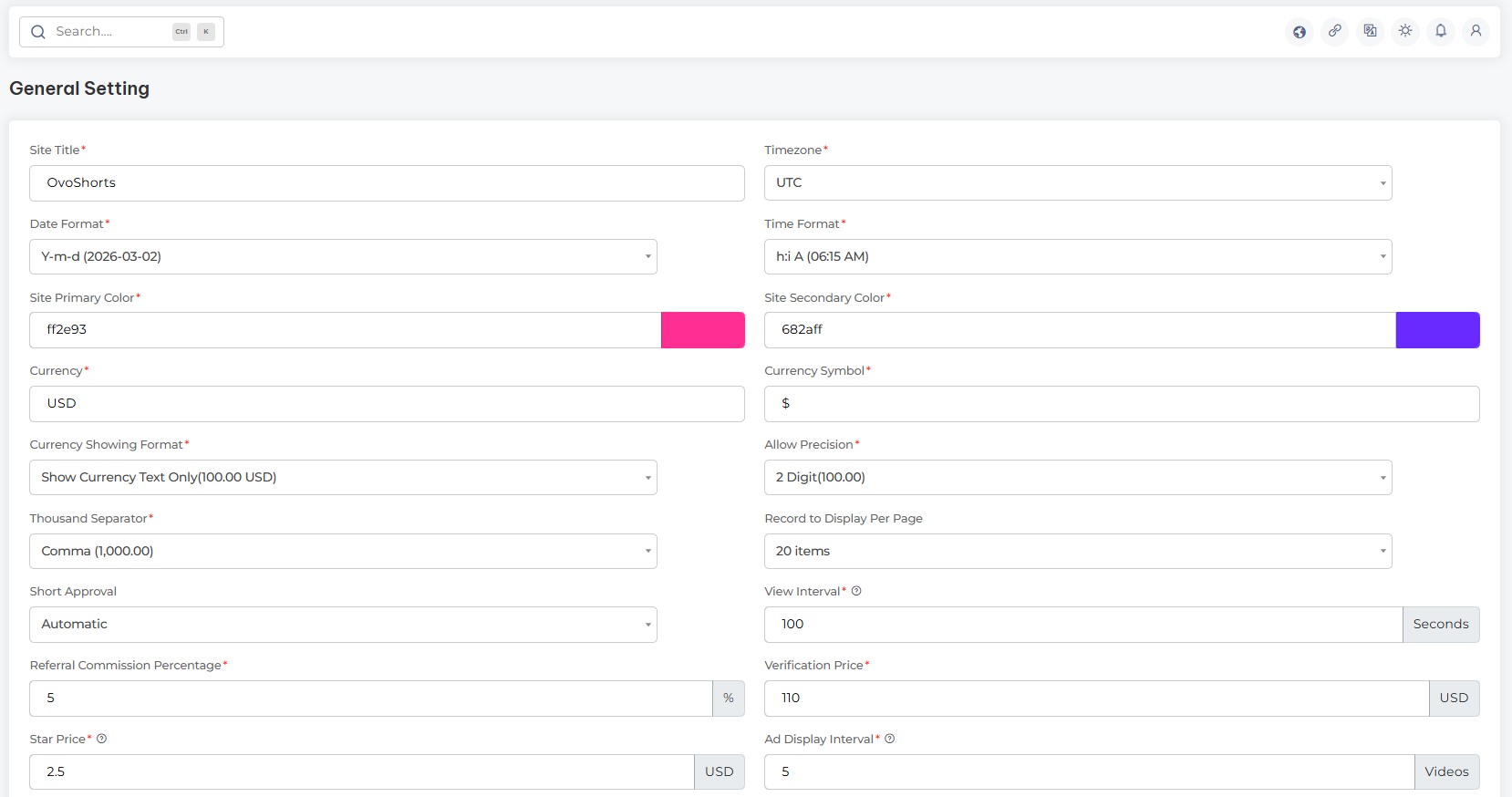
In the general settings section, you can configure the foundational details of your website. This includes setting the site title, timezone, date and time format, site primary and secondary colors, currency, currency symbol, display format, precision settings, thousand separator, records displayed per page, and other essential elements that define your site’s identity.
Brand Setting
Brand settings overview
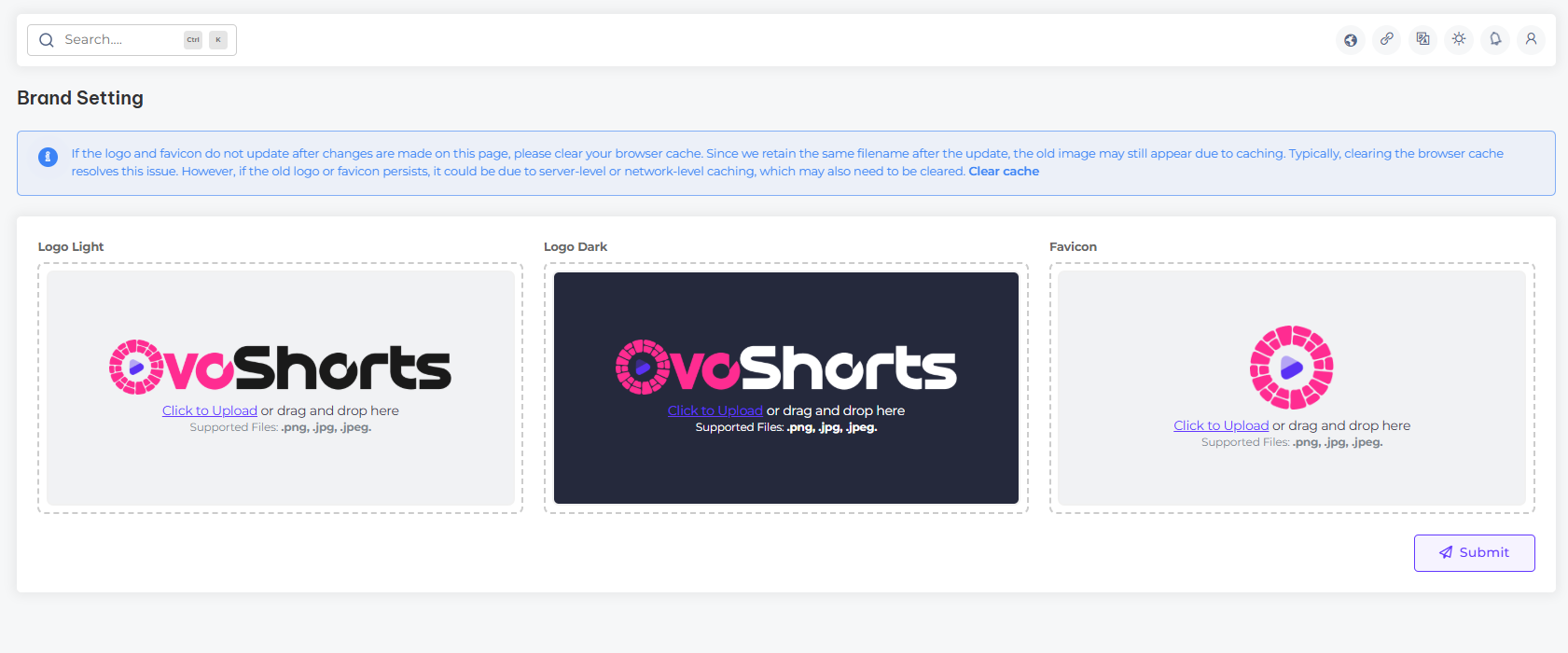
In the brand settings section, you can establish the core branding elements of your website. This includes uploading your logo in both dark and light variations, setting a site favicon, and configuring other essential elements that define your site’s unique identity.
System Configuration
System configuration overview
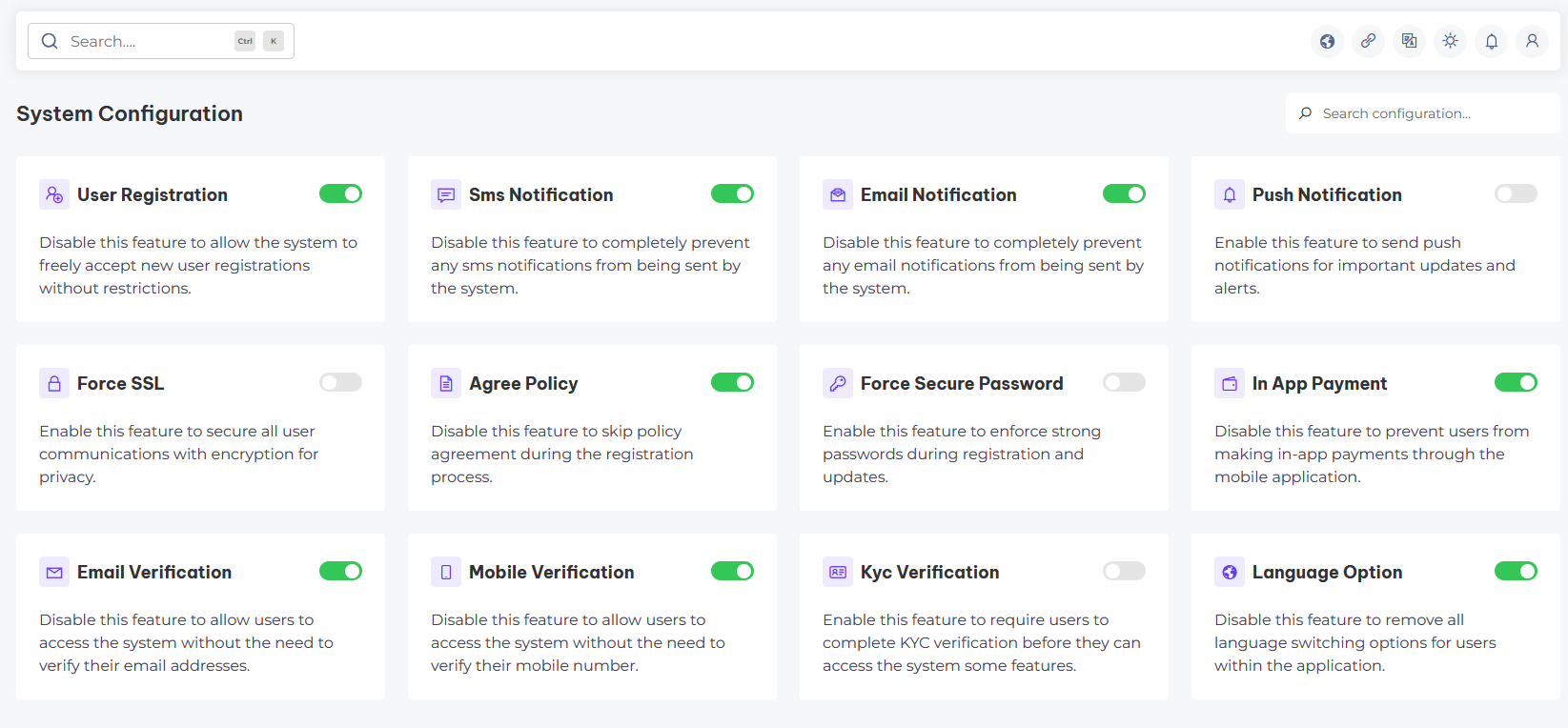
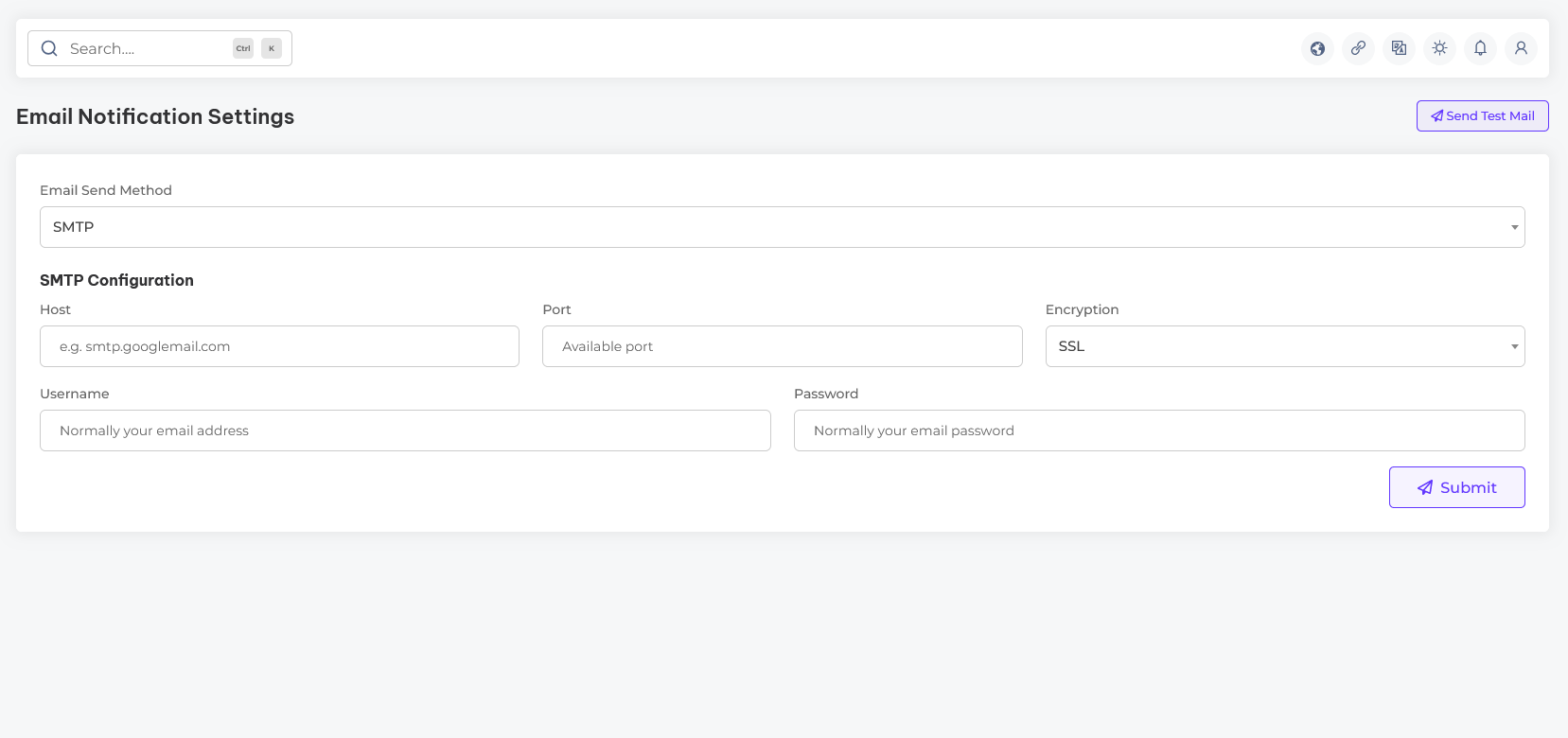
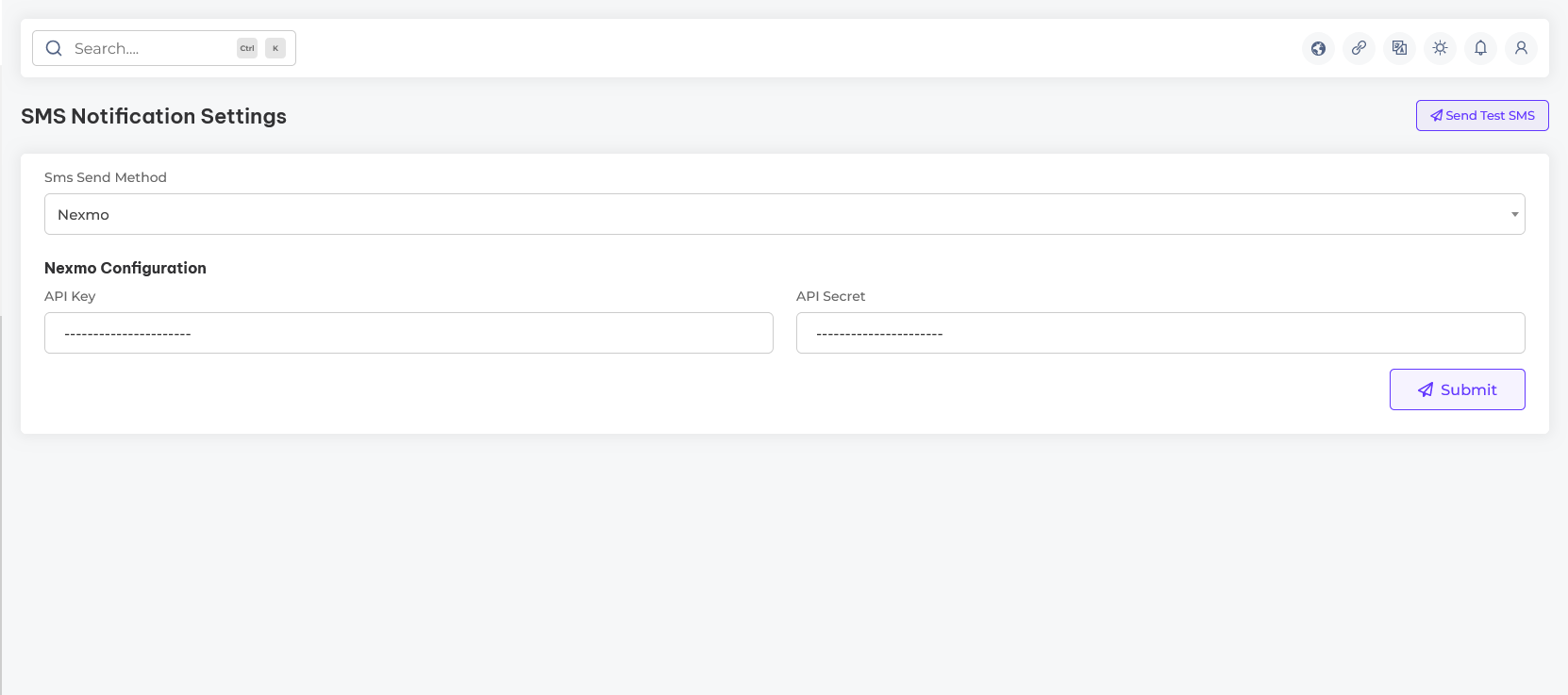
In the system configuration section, you can manage critical settings that control your website’s functionality and performance. This includes configuring server preferences, email settings, sms settings, and other essential parameters to ensure smooth and efficient system operations.
Notification Setting
Notification setting overview
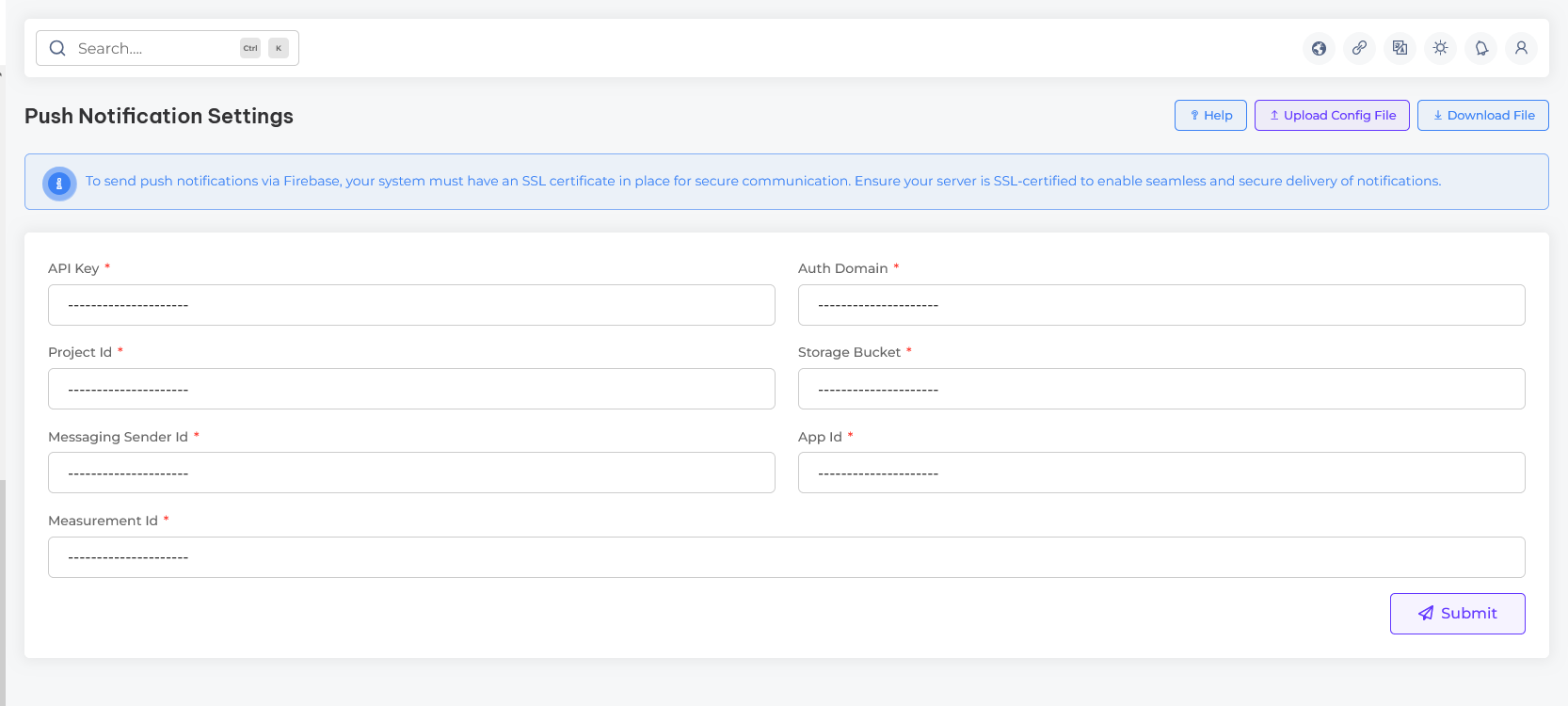
In the notification settings section, you can manage all communication channels for your system, including email notifications, SMS alerts, and push notifications. This setup allows you to keep users informed and engaged effectively across all platforms.
Pusher Setting
Pusher setting overview
In the Pusher settings section, you can configure real-time communication for your system, including broadcasting notifications, live updates, and event-driven messages. This setup ensures seamless, instant interactions to keep your users connected and engaged across all devices.
Get Pusher App Credentials
- Sign Up or Log In to Pusher: Visit the official Pusher website and create an account if you don’t already have one. If you already have an account, log in to access your dashboard.
- Create a New App: Once logged in, navigate to the "Apps" section of your dashboard. Click on the Create App button and fill in the required details such as app name, cluster region, and type of app (e.g., Channels).
- Configure App Settings: After creating the app, go to the app’s settings page. Here, you can enable or disable features like client events, presence channels, or authentication as per your requirements.
- Get Your App Credentials: Navigate to the App Keys or Credentials section. Copy the following details:App ID,Key,Secret and Cluster
- Update Pusher Settings: Log in to the admin panel, go to General Settings, and configure the credentials in the Pusher Settings section.
Still facing issues configuring Pusher credentials? Watch our step-by-step video guide to get it resolved quickly!
Cron Job Setup
Set up cron jobs to automate background tasks and ensure your platform functions smoothly.
Cron jobs are essential for processing queued tasks, scheduled commands, automated notifications, subscription updates, and more. Setting them up ensures that background operations continue to run without manual intervention.
Follow the steps:
- Access Your Hosting Control Panel: Log in to your hosting control panel (e.g., cPanel, Plesk, or VPS terminal access).
- Open the Cron Jobs Section: Find and click on the Cron Jobs option under Advanced or Tools section.
-
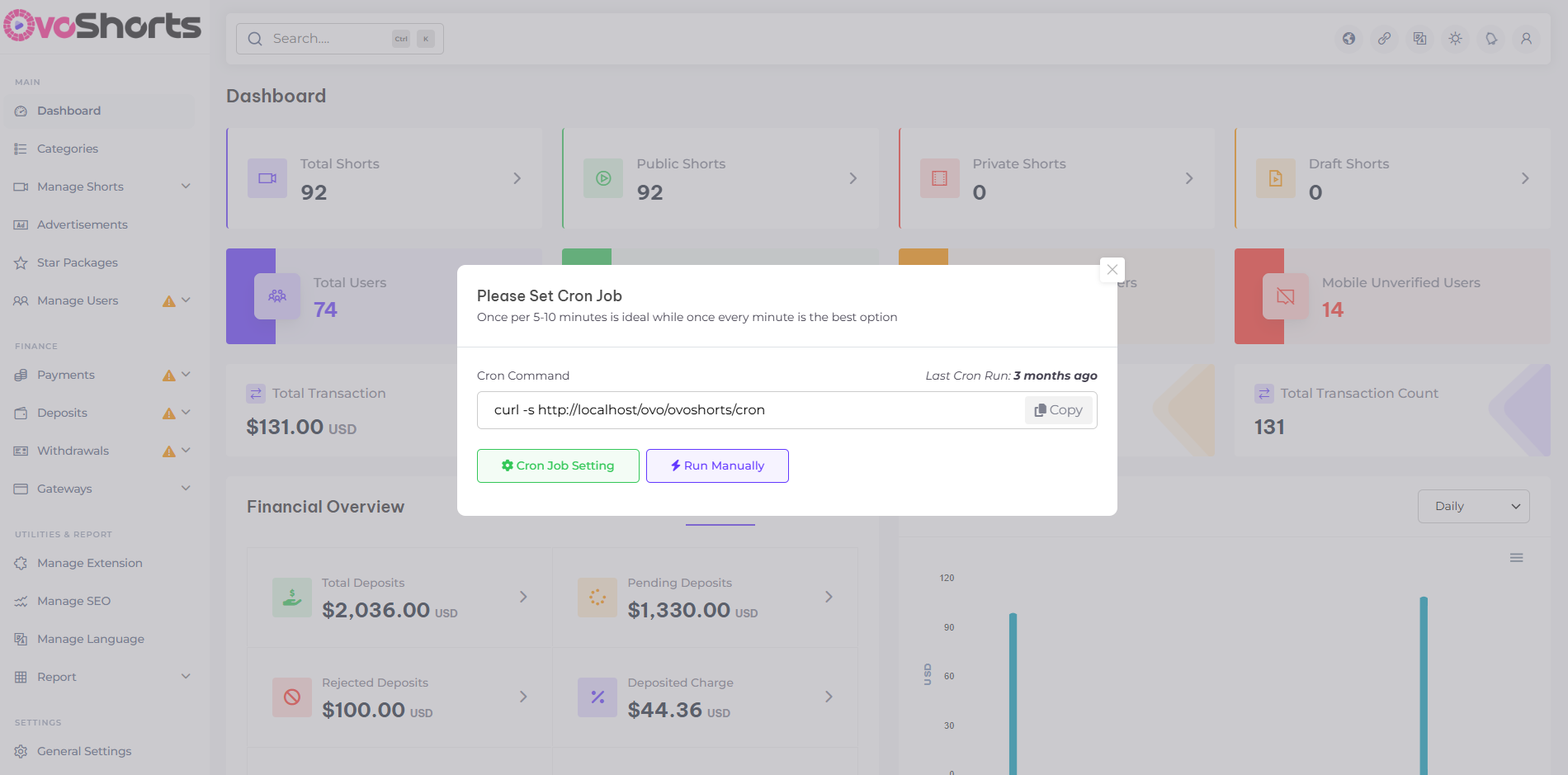
Create a New Cron Job: Choose a time interval
(recommended: every 1 minute) and go to the your admin dashboard and
copy following command.
- Save and Activate: Click the Save or Add New Cron Job button. Your scheduled tasks are now automated.
- Test It: Navigate to the Cron Job Settings section from your admin dashboard to monitor and verify if the cron jobs are running correctly by reviewing the execution logs.
Need help configuring cron jobs? Watch our quick tutorial to walk you through the process step by step.
Extensions
Overview of the platform integrated extensions
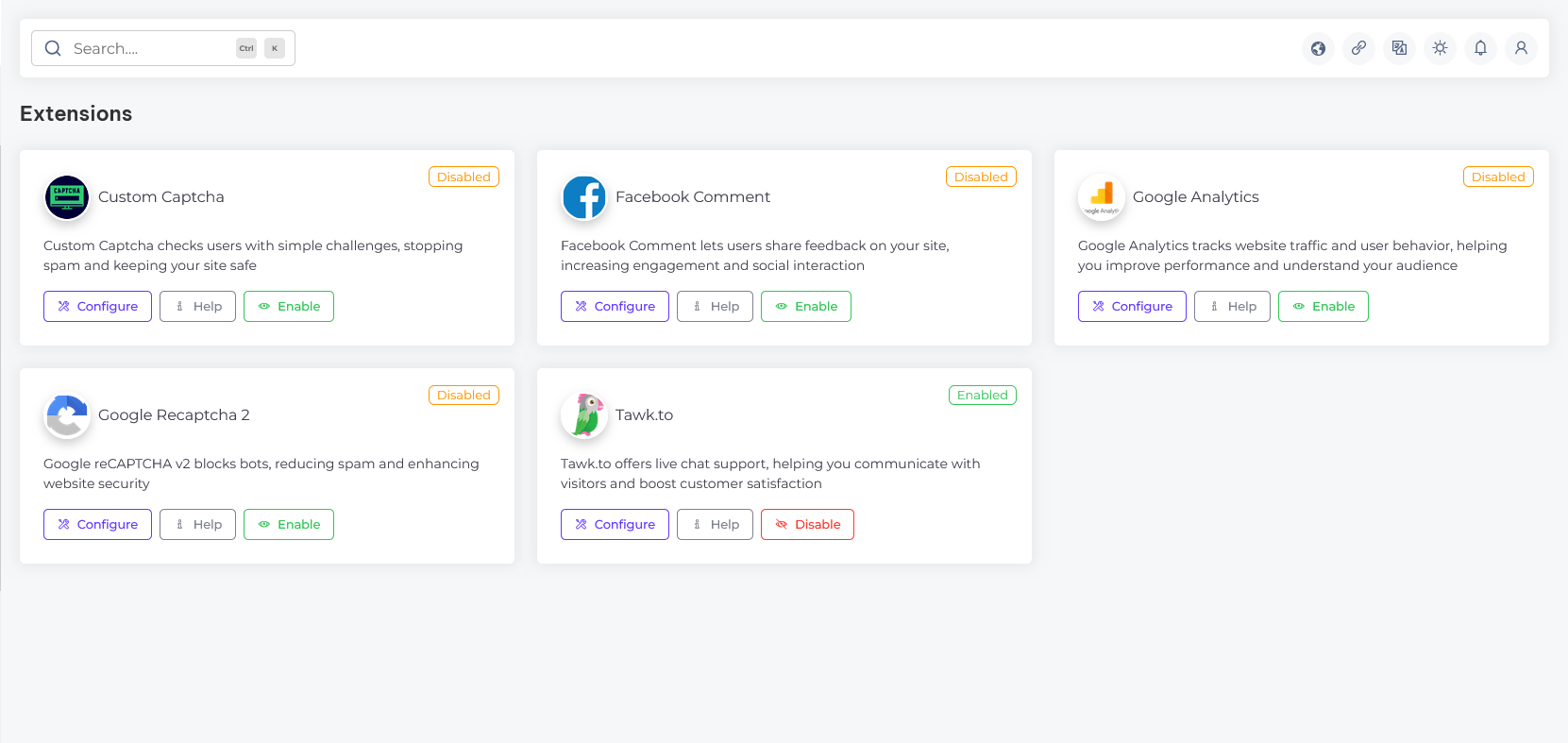
In the extensions section, you can manage additional features to enhance your website’s functionality. This includes integrating Custom Captcha, Facebook Comment, Google Analytics, Google reCAPTCHA 2, and Tawk.to, providing advanced security, user interaction, and analytics capabilities.
Manage SEO
Platform SEO customization overview
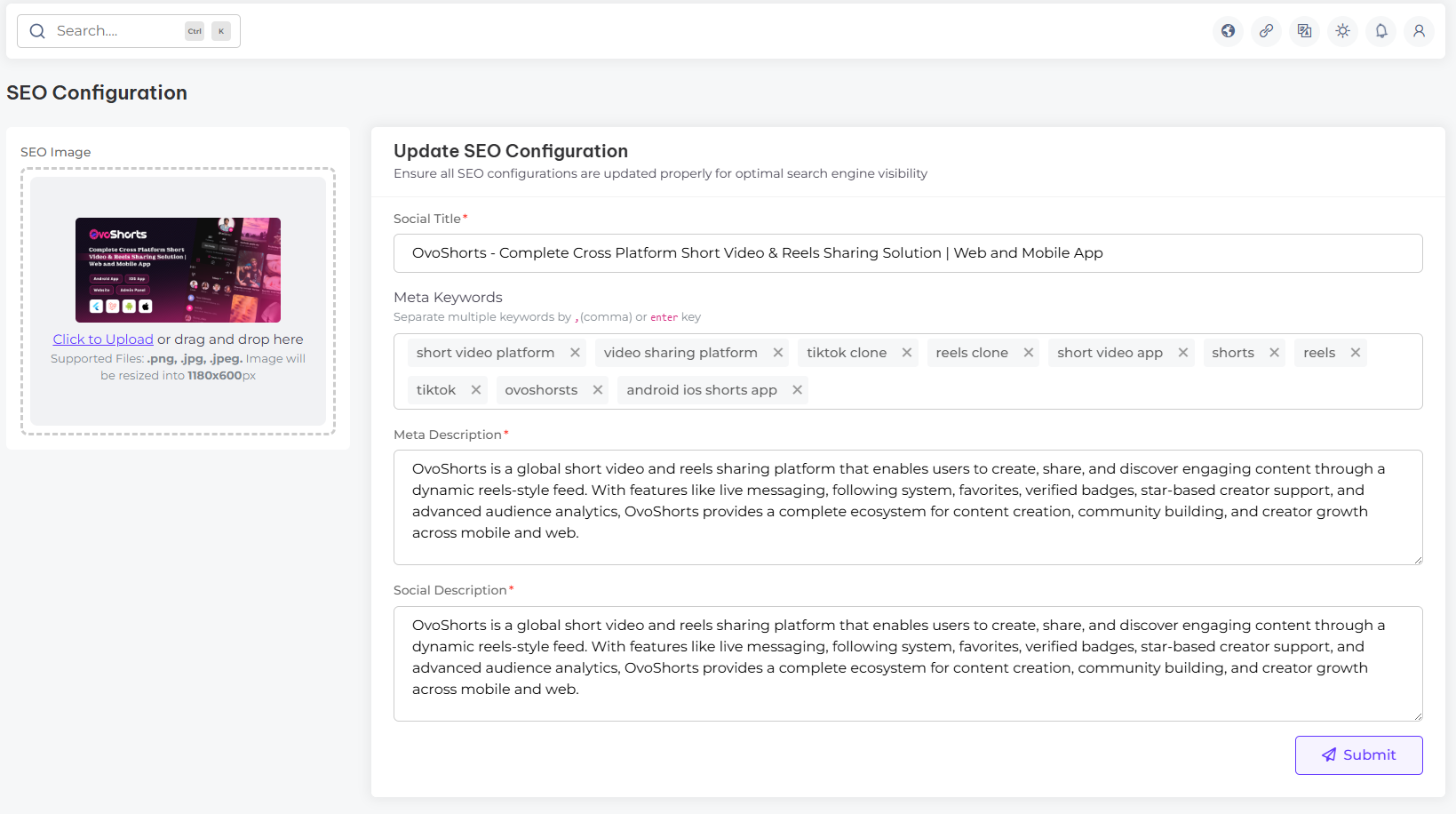
In the SEO configuration section, you can customize key elements to enhance your site's search engine presence. This includes setting the Social Title, Meta Keywords, Meta Description, and Social Description to improve visibility and engagement across search engines and social platforms
Localization
Overview of platform localization settings
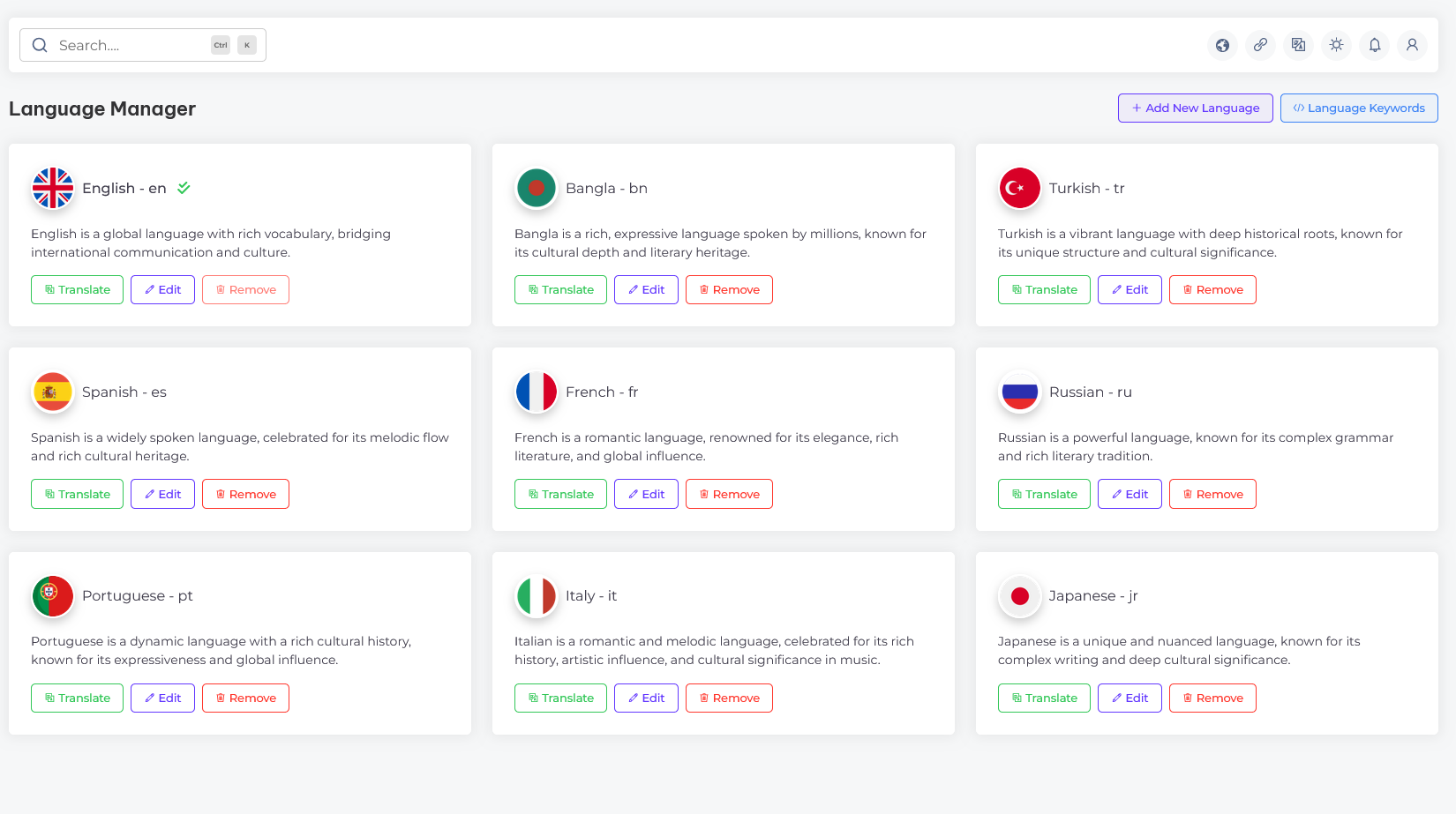
In the localization section, you can configure the language settings for your website. This allows you to tailor content and functionality to suit the preferences of your target audience, ensuring a personalized user experience across different locations
Information
Overview of application information and technologies
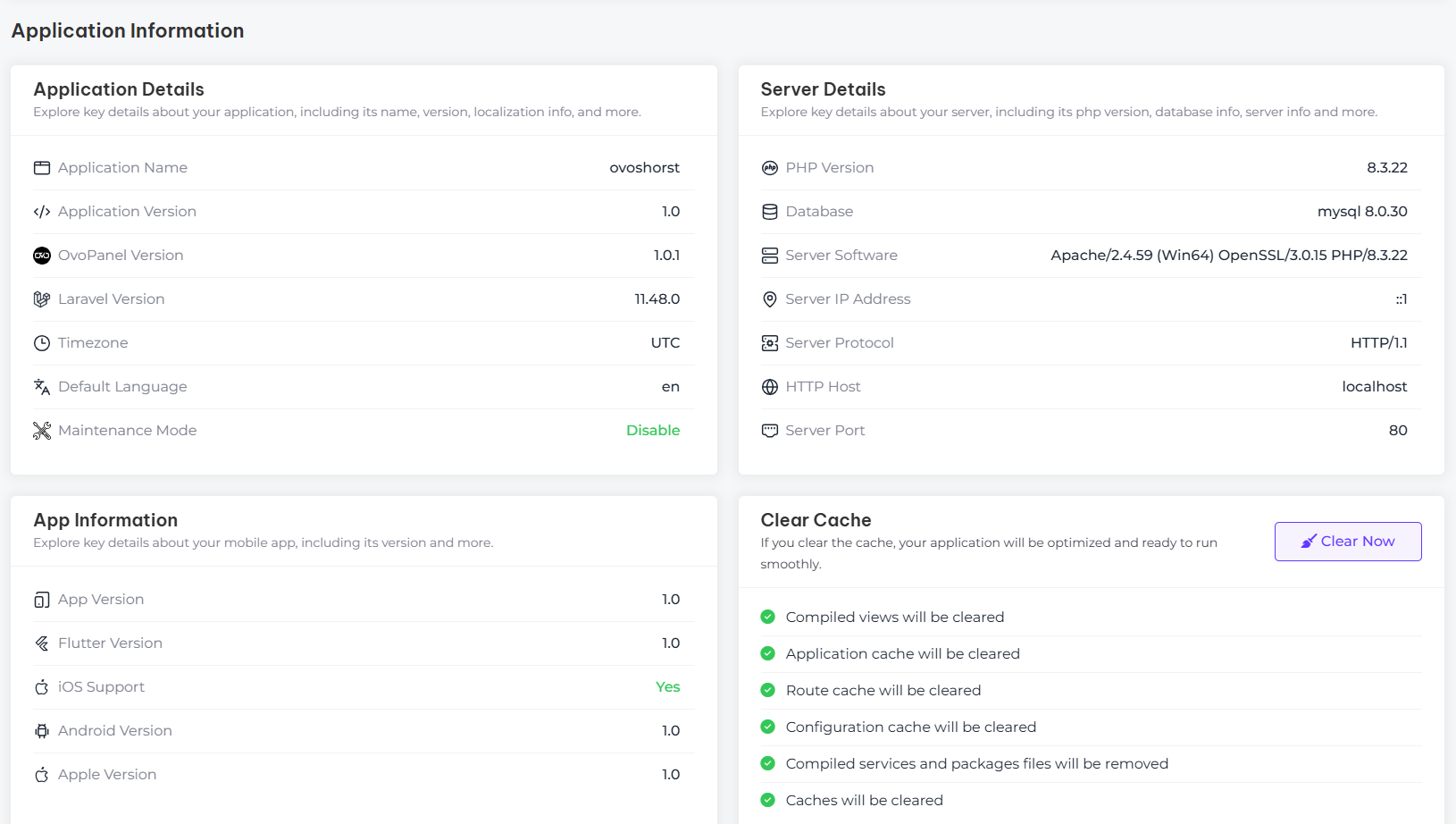
In the Overview of application information & technologies section, you can find key details about your application, including its name, version, and the technologies used. This section provides an insight into the technical foundation of your application, helping you manage and maintain its infrastructure effectively.
Support
How to get assistance
Thank you for purchasing our product! For any support or assistance, feel free to reach out to us via the provided email address. Our dedicated support team is available 24/7, ready to help with any questions, technical issues, or inquiries you may have. We are committed to providing prompt and reliable assistance to ensure a seamless experience with our product. Your satisfaction is our priority, and we are here to support you every step of the way.